How do I work with AI suggestions?
How to review, apply, dismiss, and undo drafts and suggestions.
Updated 17 November 2026
Introduction
PointProven labels its suggestions, such as Suggested argument or Suggested fix. Nothing changes your text until you apply it.
Small suggestions appear beside your work. A first draft of your argument or outline lands on the empty page, yours to edit at once. A later draft, or a redraft, appears in place of your page for review.
How to
What the AI drafts, and where
- Frame. Nothing is drafted when Frame opens. If the deck has material, Draft it for me drafts the Situation on request. PointProven may also suggest a rewording of your Question. See Define the question.
- Argue. A drafted argument: your answer, its points and their evidence. When you press Challenge me, up to two challenges to your argument. See Build your argument.
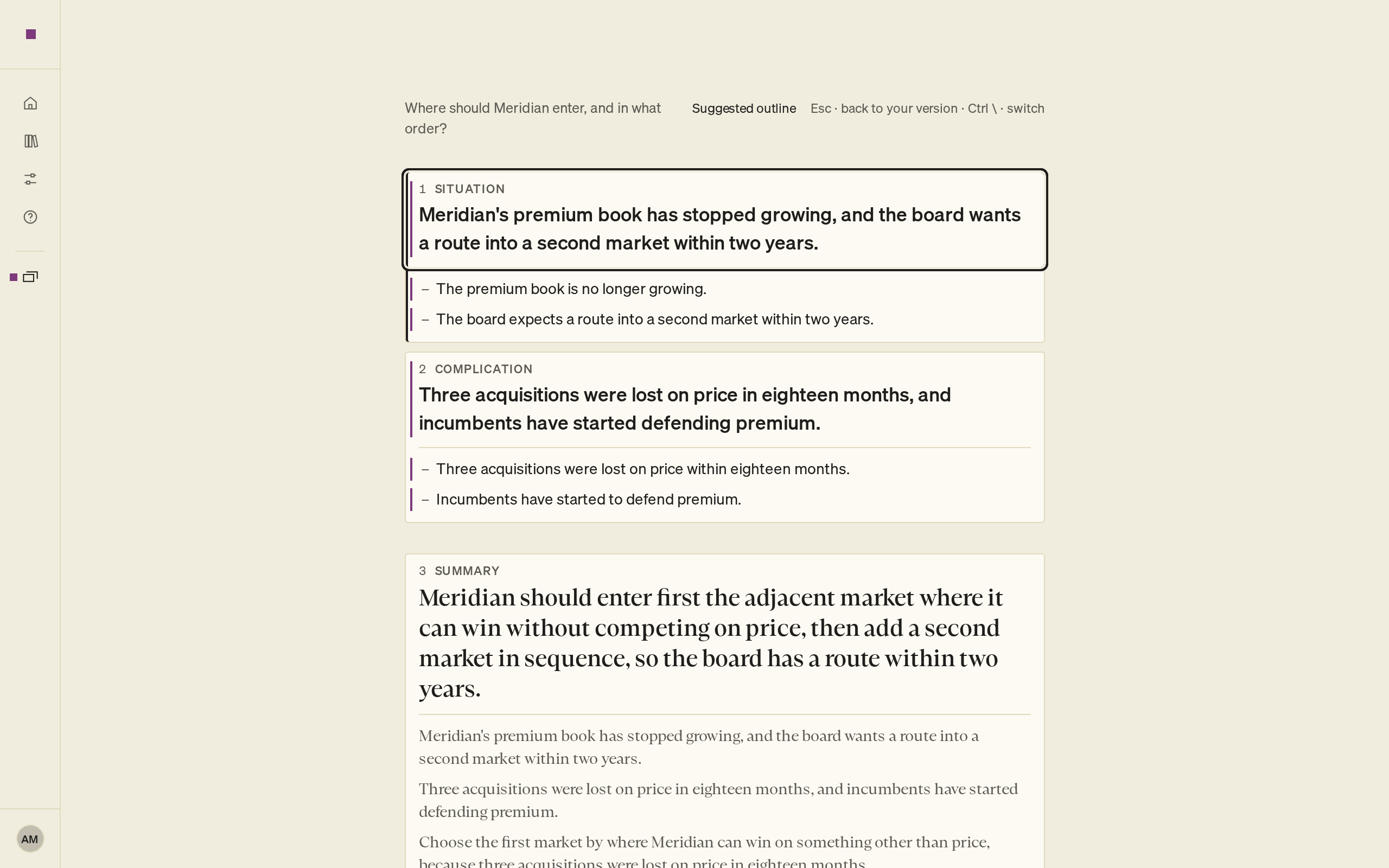
- Outline. A suggested outline that adds lines to your slides from your argument. It never writes over your words. See Plan your storyline.
- Sources. When you type a figure that PointProven finds in your material, it offers a Suggested source. See Cite a source.
- Checks. Some findings come with a fix. See How quality checks work.
How a suggestion looks
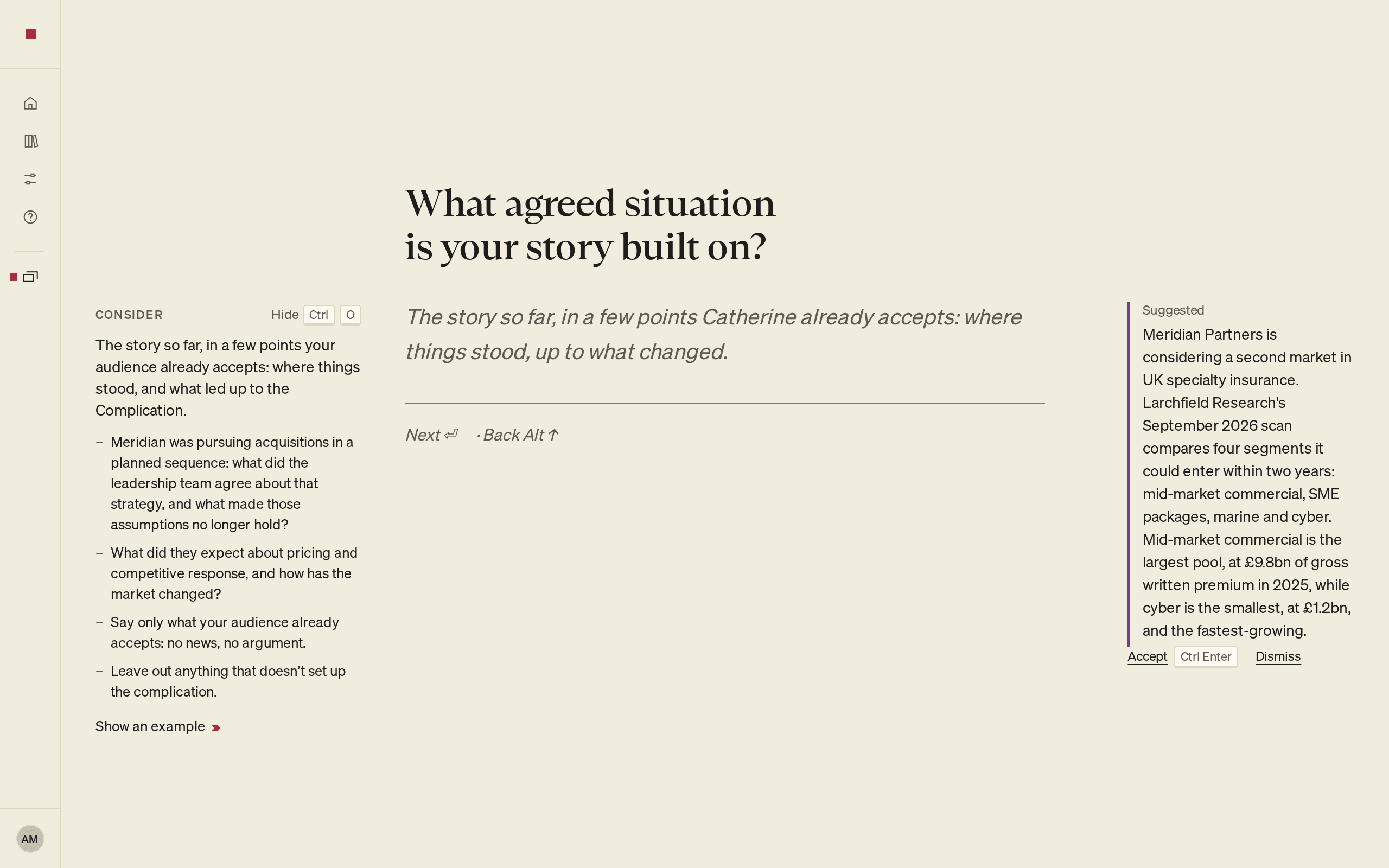
Small suggestions sit in the right column beside the item they concern. They include Suggested fix, Suggested source, and Suggested figure.
In Design, applying a Suggested sketch makes the slide ready. Frame can show a Suggested answer or a Suggested rewording of your question. A drafted argument names the files it drew from above the draft. An argument drafted without material says From your Situation, Complication and Question. With no material, it cites no evidence.
A first draft of your argument or outline lands straight on the empty page as your own text, so there is nothing to take. ⌘Z (Ctrl+Z) does not take it back. To clear it, select Start from scratch. The link stays while the step holds anything, and it clears the whole step, including work you added after the draft. In Argue, every point goes to the bin. In Outline, the outline goes back to how it was before the draft. If another step has changed since, the outline's own lines go to the bin instead. Either way, ⌘Z (Ctrl+Z) brings it all back.
A later draft, such as a redraft or one you ask for when the page already has work, shows in place of your page, read-only, and you take or leave it whole. Read it to the end first. The button that takes it is at its foot.
What you can do with a suggestion
- Apply a small suggestion (⌥Enter or Alt+Enter), or Dismiss it.
- Start from scratch clears everything in Argue or Outline, not only a first draft.
- On a draft shown for review: Take the redraft or Keep yours in Argue, Take this outline or Leave it in Outline.
- Switch between the draft and your version with ⌘\ (Ctrl+) in Outline, and on a redraft in Argue. Esc goes back to your version.
- Draft it for me asks for a new draft. In Frame it is beside an empty Situation, and only when the deck has material. It is also beside the answer in Argue. In Outline it is in the command palette, ⌘K (Ctrl+K), and beside the first slide after a failed draft.
- Redraft gets a new version when something it depends on has changed. You then choose Take the redraft, or keep yours.
You can also ignore a suggestion and write your own text. Typing in an empty Argue or Outline stops a running draft.
Written guidance, titles and checks
Consider, in the left margin of Frame, above the map in Argue, and in Outline and Deliver, is written guidance. In Frame, Show an example offers a good and a poor example. Consider is not drafted by AI.
PointProven names the deck from your Question. You can Rename it.
Argue may also offer a Suggested title from your answer. PointProven makes this title without AI. The four Win the work cards are also added without AI, for you to fill in.
Checks mark your deck with a category word and a shape. See How quality checks work.
When you give a person's name in Frame, PointProven may look their role up in public work profiles to tailor the guidance. You confirm or change the result. See Define the question.
Nothing changes until you apply it
A suggestion is never part of your deck until you apply it. Until then, it does not count towards opening the next step, it does not feed the next step's drafts, and it never reaches your exported file. There is no control that applies every suggestion at once.
If you change the text a suggestion was written for, PointProven withdraws the suggestion.
One undo takes it back
Taking a draft is one change. One ⌘Z (Ctrl+Z) takes the whole argument or outline back out. When a redraft replaces your work, your old points or lines go to the bin, and the same undo brings them back. After an undo, the draft waits to be shown again.
FAQs and common issues
When a draft doesn't come
A draft can fail, or take too long and be stopped. Argue and Outline say The draft didn't come, and Frame says Nothing was drafted. Your work is unchanged. Select Draft it for me to try again, or write it yourself.
If PointProven says AI checks and drafting are paused until a date, your account has used its AI allowance for now. Writing and export keep working. See Fix common problems.
For data-handling information, see Data and privacy and the privacy policy.
Can I apply every suggestion at once?
No. Review and apply each suggestion separately. A suggested argument or outline is taken or left as a whole.
Can I undo a draft that replaced my work?
A first draft lands on an empty page, so it replaces nothing. ⌘Z (Ctrl+Z) does not take it back, but Start from scratch clears it, along with anything you added since. ⌘Z (Ctrl+Z) brings that back. A draft you take after review comes back out with one ⌘Z. A redraft puts your old points or lines in the bin, and the same undo brings them back.
Related articles
After you export
What the exported PowerPoint file contains, how to edit and restyle it in PowerPoint, and how to keep the deck and the file in step when you change one of them.
Upload files and notes
Add PDF, PowerPoint, Word, spreadsheet or text files or pasted notes to a deck as Material, choose what it uses, and reuse a client's files.