How do I cite a source for a figure?
How to cite material or a reference, check its status, and read the exported source line.
Updated 16 November 2026
Introduction
Every figure you state as a fact needs a source. Cite a file from your material when you can. PointProven then checks the figure against it. Cite by hand when the source is not in your material.
How to
Cite a file from your material
In Argue, Outline and Design:
- Put the caret in the sentence that holds the figure. To cite only some words, select them.
- Press ⌘K (Ctrl+K) and type words from the file or passage.
- Under Material, choose the result that reads Cite file for "figure".
In Argue, a card's menu also has Add a source. In Outline, a line's menu has Add or change the source. Both open the same search.
A result that ends from client's other material is a file this deck does not use yet. Choosing it adds the file to the deck.
The figure now has a dotted underline. Hover over it, or move the caret into it, to see its source card.
A figure from a spreadsheet names its sheet and cell after the file's name, for example Market model, Segments · C7. A quote across one row names its cells, for example Segments · A7–D7, and a quote over several rows names the sheet alone. A .csv file has no sheets, so it names only the cell, for example Prices, C7.
Apply a suggested source
When you type a figure that PointProven finds in your material, it offers a Suggested source beside it. Select Apply (⌥Enter or Alt+Enter) to cite it, or Dismiss.
Cite a source by hand
Use this for a report, a web page, a dataset or an interview that is not in your material.
In Frame, Argue or Outline:
- Put the caret in the sentence that holds the figure.
- Press ⌘K (Ctrl+K).
- Choose Add a source.
In Frame, you can also type ^ straight after the figure.
In the Add a source form:
Choose the Kind and enter Organisation or author, Title, Month, and Year.
Add Page, slide or table if you know it. For a web page, add the Web address and the Date read.
Check the preview under On the slide. To print a shorter name, use Short name, on the slide. Select Save the source (⌥Enter or Alt+Enter).
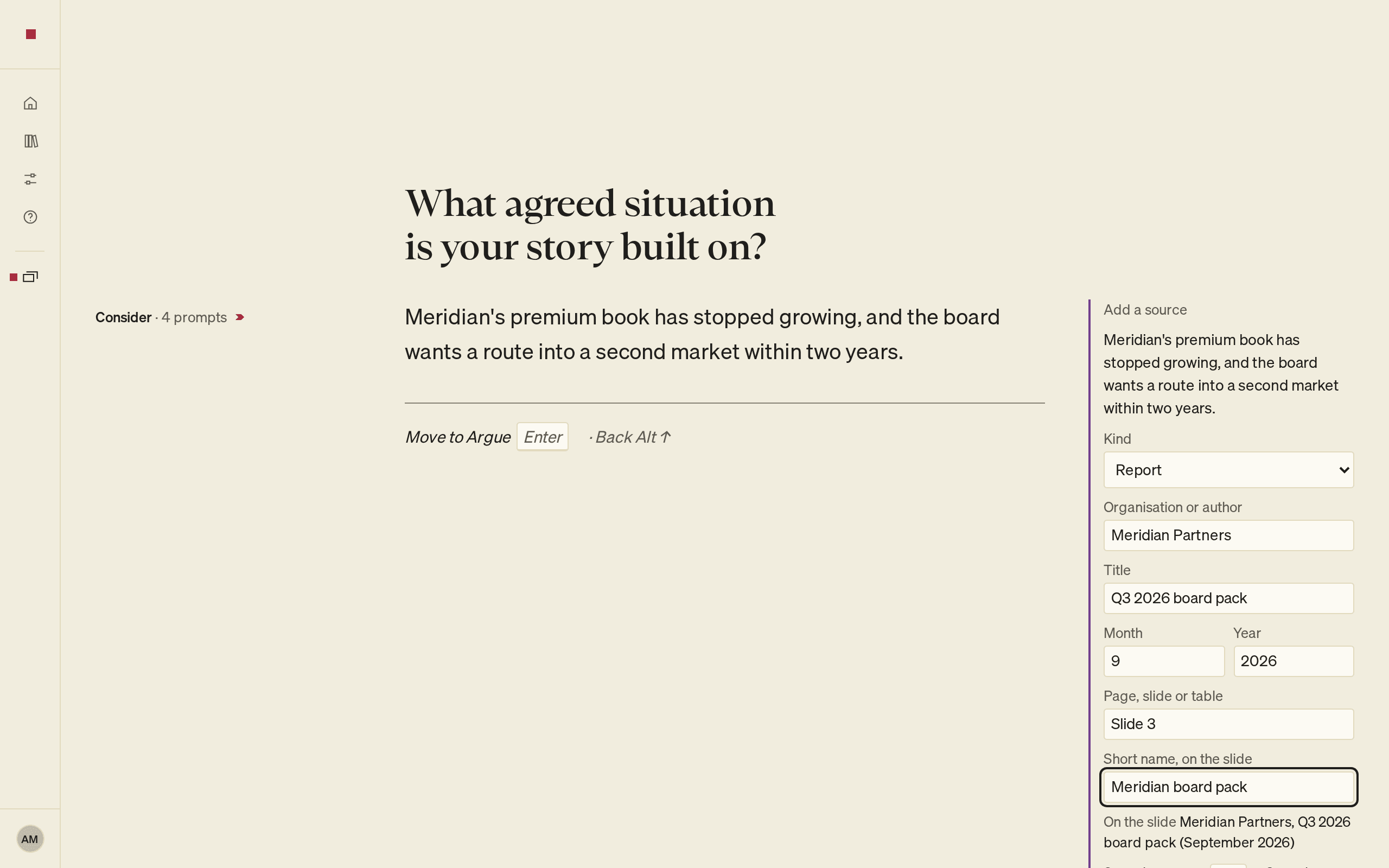
For an interview, a name you type stays in PointProven and never reaches the exported file. In Frame, the same form also cites a file from your material: choose Material as the Kind.
To source a chart, use its Data panel; see Design your slides.
Stand by a hand citation
A figure cited by hand reads Cited, not verified: the source is not in your material, so PointProven cannot check it. Deliver lists the figure before you export unless you stand by the source. Standing by a source means you have checked it yourself.
To stand by it, do one of these:
- In the right column, beside the figure's Cited, not verified mark, select I stand by this source.
- Put the caret in the figure, press ⌘K (Ctrl+K) and choose I stand by this source.
The mark goes, and the source card reads Cited, and you stand by it. ⌘Z (Ctrl+Z) undoes it.
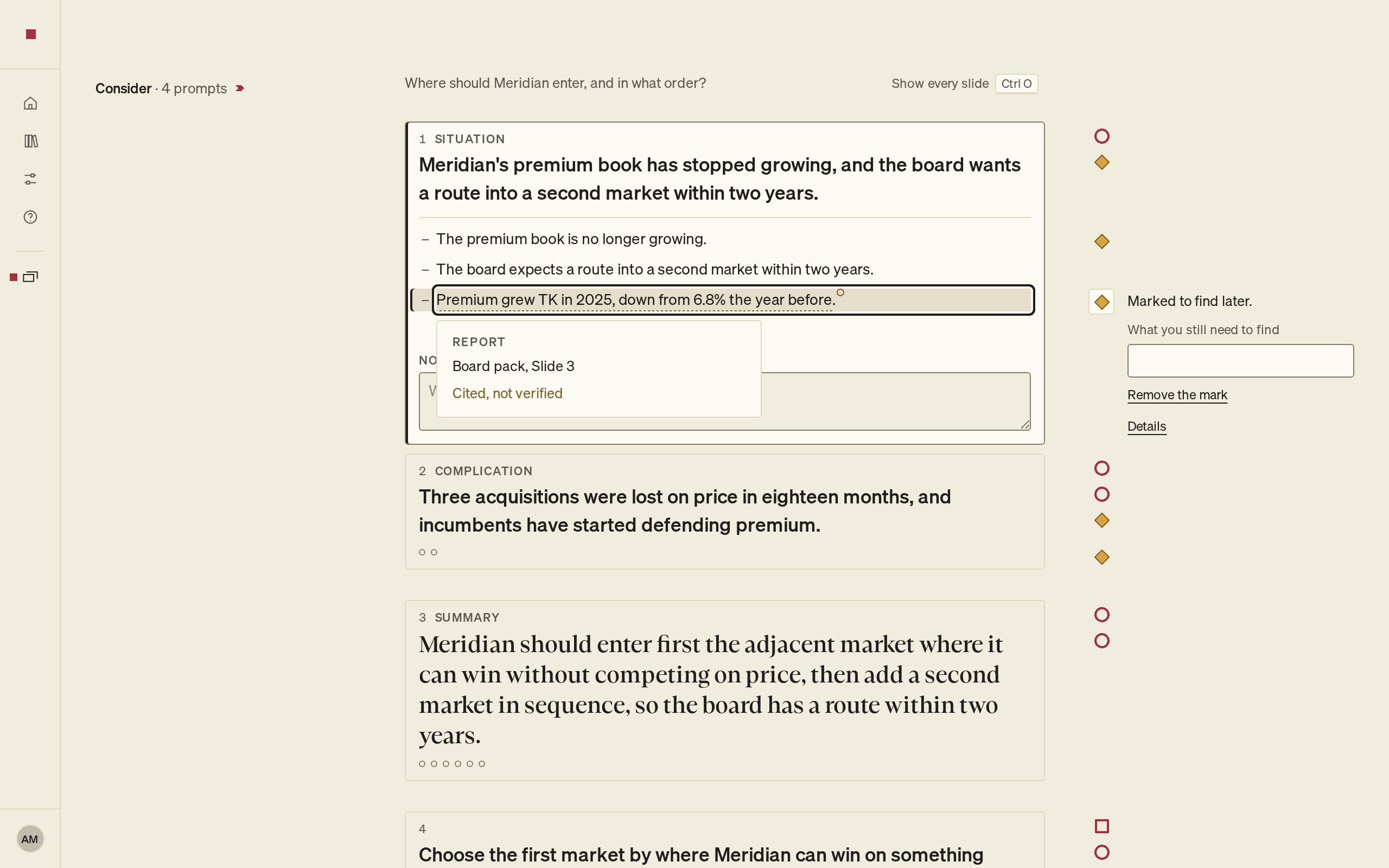
To take a source off a figure, choose Remove the source in the same places.
Read the Sources marks
Checks about sources are the Sources category, drawn as a diamond. The word Sources leads each finding. They show in Argue, Outline, Design and Deliver, not in Frame.
- Has a source: a figure with no source reads "“figure” has no source."
- Matches its source: fails with "A figure here is not in its source."
- Its source states it: fails with "Its source does not state this."
- Its figure is current: fails with "A figure here is out of date." A figure whose source was replaced reads "“figure” cites old source, which was replaced by newer source."
A slide shows at most two Sources marks at a time. A line counts the rest, for example "2 more Sources marks show once these are dealt with." Deal with the marks you can see and the next ones appear.
See how the source prints
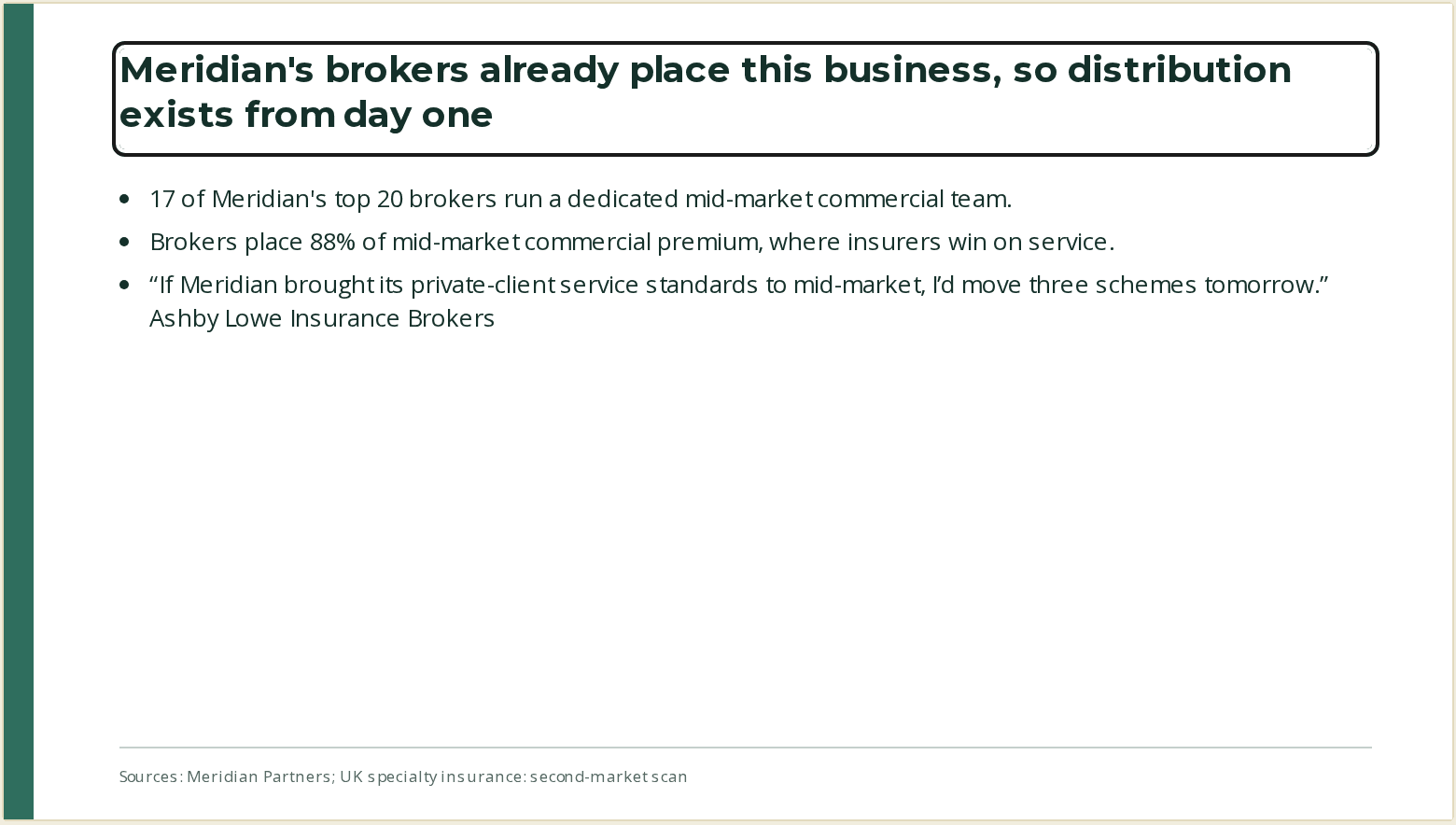
Each slide has one source line at its foot, built from the sources of its figures:
- It starts Source: for one source and Sources: for several, separated by semicolons.
- Sources appear in the order the slide first uses them. A chart's source joins the same line.
- Each source prints in short form: the organisation and title, with the month and year if the title has no date. Pages and web addresses are left off.
- An interview prints as, for example, "Meridian management interview (September 2026)".
For example: Sources: Meridian annual report FY2024; Mintel, UK Premium Retail 2026
The speaker notes carry the detail. Under Sources, each figure is quoted with its full reference, including the page and a web page's address. To preview the full references:
- Open a slide in Design.
- Select Speaker notes.
Deliver lists any figure with no source before you export; see Review and export.
FAQs and common issues
Why does a figure say Cited, not verified?
A source entered by hand is not in your material, so PointProven cannot check the figure against it. Stand by the source only after checking it yourself. See Stand by a hand citation.
Where are the full references?
The speaker notes contain full references, including page details and web addresses. The source line on the slide uses short references. See See how the source prints.
Related articles
Upload files and notes
Add PDF, PowerPoint, Word, spreadsheet or text files or pasted notes to a deck as Material, choose what it uses, and reuse a client's files.
Mark a figure to find later
Type TK where a figure is still to come, find every open mark before you export, and remove each mark once the figure is in and cited.