How do I upload files and notes?
How to add source material to a deck and reuse a client's files.
Updated 16 November 2026
Introduction
Material is the files and notes you give PointProven for a client. PointProven drafts from your material and checks your figures against it. Add material at Do you have material you can upload to start from? when you start a deck.
Uploads supply source material. Uploading a PowerPoint file does not import its design as a faithful, editable deck.
PointProven reads PDF, PowerPoint (.pptx), Word (.docx), spreadsheet (.xlsx and .csv), and text (.txt) files. A text file is kept as notes.
In a spreadsheet, PointProven reads each table row by row, with each cell under its column's header. A figure you cite from it names its sheet and cell, so you can find it again. A spreadsheet can have up to 12,000 filled cells. Split a larger one, or keep only the sheets you need.
How to
Add files when you start a deck
First, Who is this deck for? asks for the client organisation, because material belongs to a client. Frame then asks Who will you present to? for the person you present to (Who is the audience? on a deck for your own firm). The material question comes next.
You can add up to five files at a time.
- At Do you have material you can upload to start from?, select choose them and pick one or more files. You can also drop the files anywhere on the page.
- Select Continue, or press Enter. Your files keep reading while you answer the next questions.
Each line shows reading until it shows Ready, with its page, slide or sheet count where the file has one. You can move on before reading finishes.
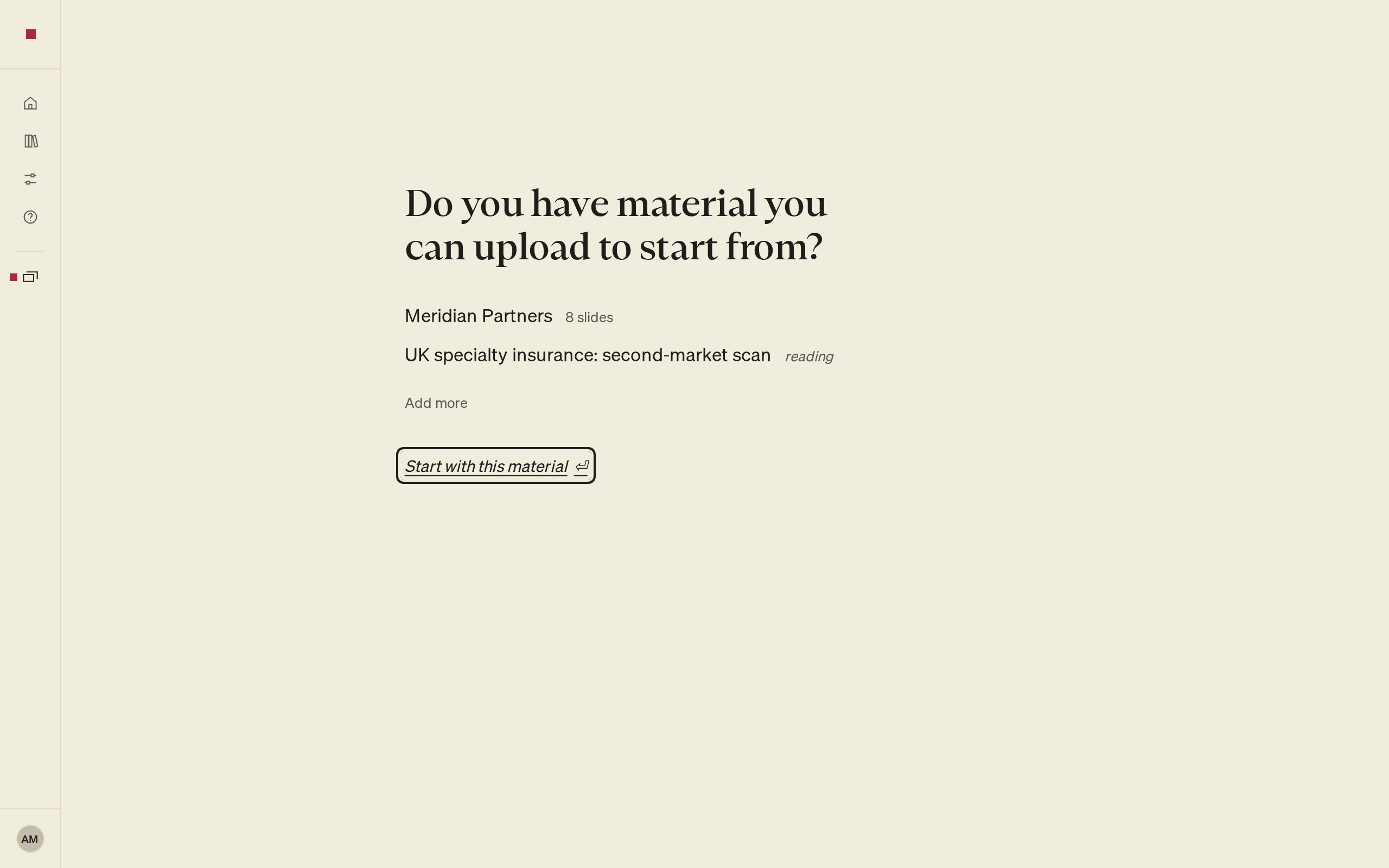
PointProven uses the file once it has been read.
Paste notes instead
At the material question, use paste notes to type or paste notes. Select Add the notes, or press ⌥Enter (Alt+Enter).
The notes join the list as Notes, followed by the date. To close the notes area without adding anything, press Esc.
Choose which material the deck uses
The list under the question shows the material this deck uses. Draft it for me drafts your Situation from that material. The first draft in Argue uses it too, and source checks verify figures against it.
- To add more, select Add more, then choose files, paste notes or reuse the client's material.
- To take a file off the list, select Remove. You can also move to its line and press Delete.
- To put it back, press ⌘Z (Ctrl+Z).
Removing a file from the list does not delete it. It stays in the client's material in the Library.
To build the deck without material, select Continue without files. Without material, Frame makes no drafts, and you write each answer yourself.
Reuse a client's material
Each file you add is kept with its client. A later deck for the same client can use those files again without uploading them.
- At the material question, select reuse followed by the client's name, for example reuse Meridian Partners' material.
- Select each file you want this deck to use.
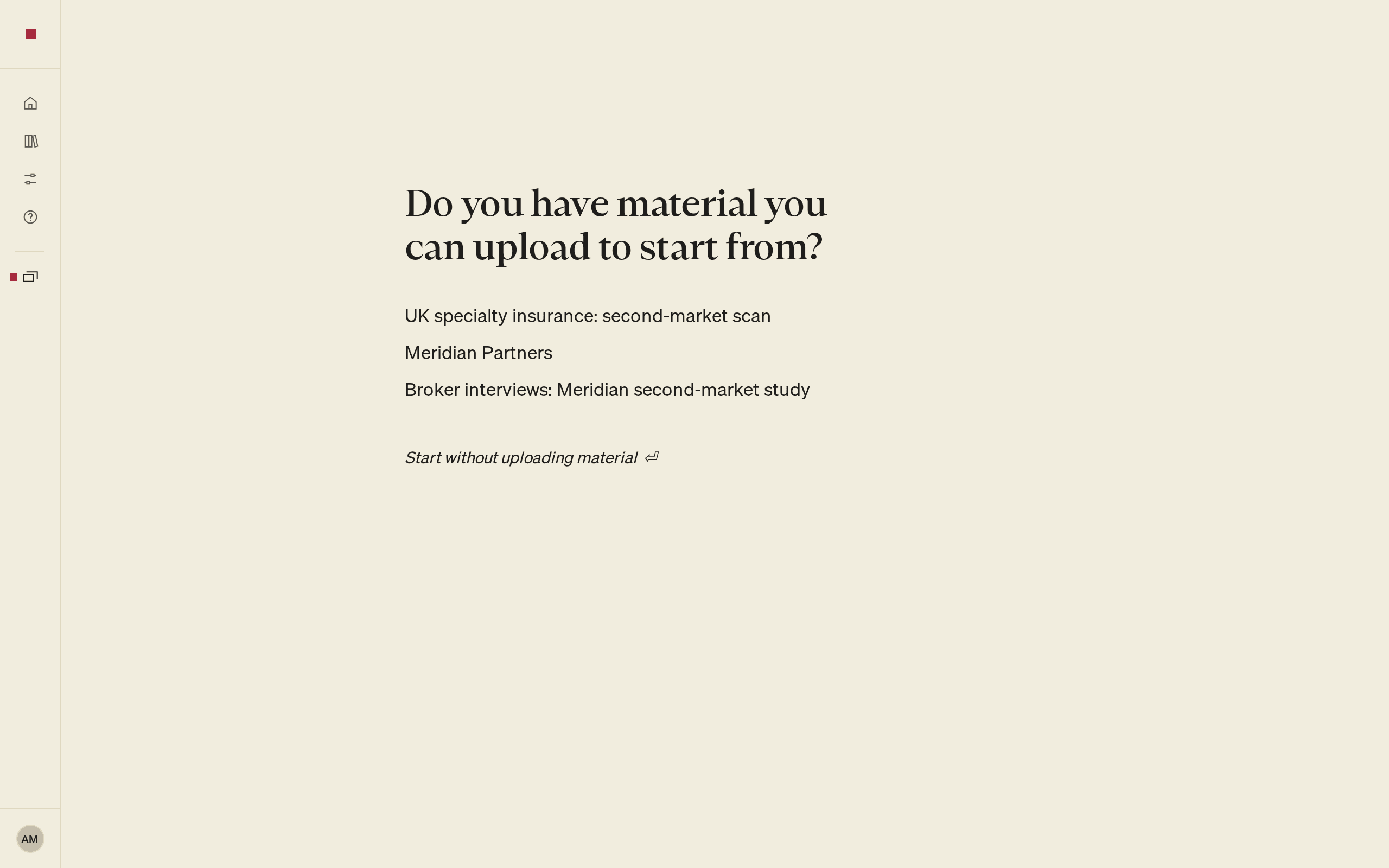
The reuse link appears only when the client has files that this deck does not use yet. A deck never sees another client's material. To use a different client's files, start a new deck for that client.
Once a deck has used a client's material, its client is fixed. If you go back to Who is this deck for?, PointProven explains why.
Find your material in the Library
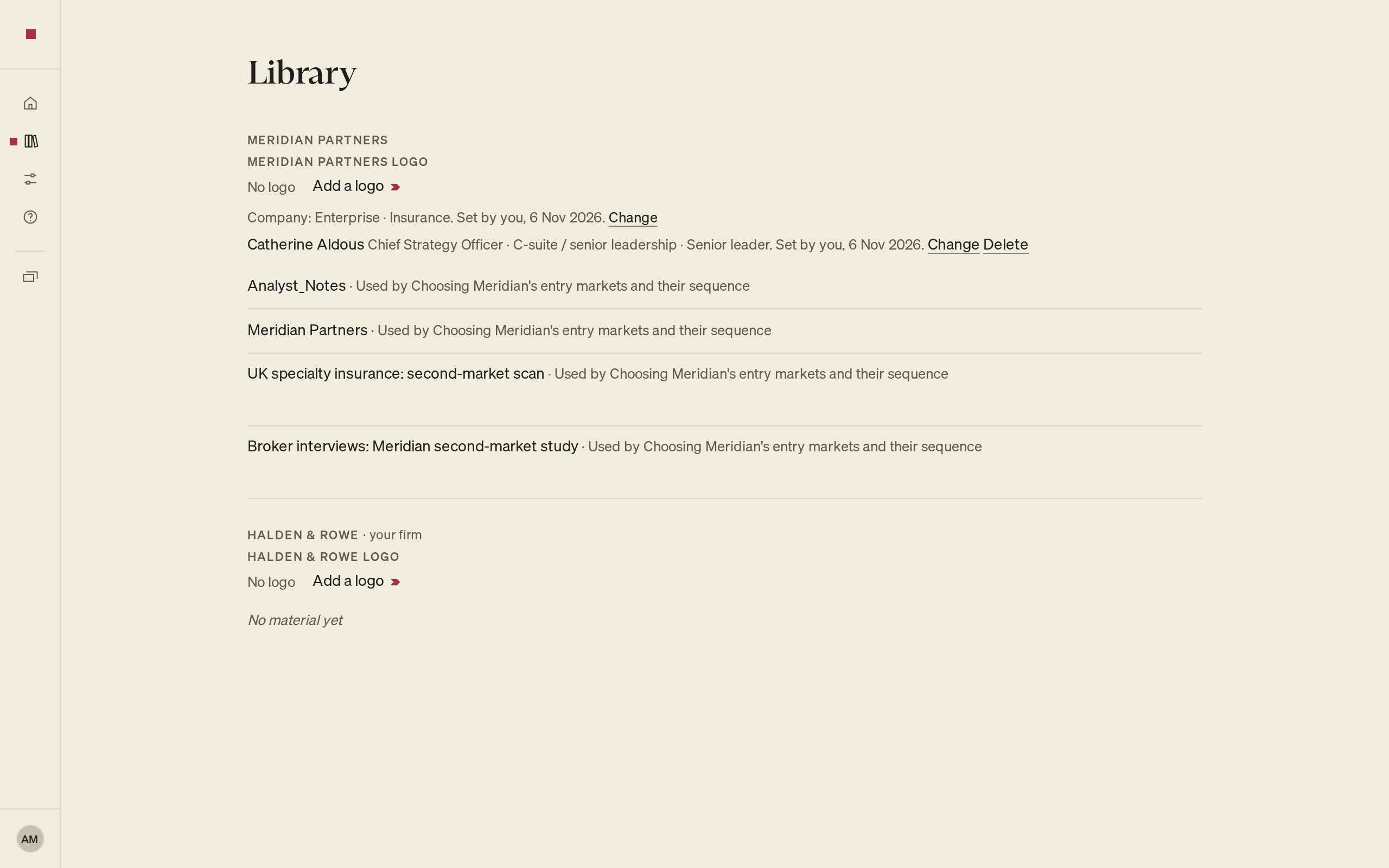
To see every file you have added, select Library in the menu down the left of the page. The Library lists material by client. Each file shows which decks use it, for example Used by followed by the deck titles.
Under each client, the Library also shows how its decks are tailored: a Company line with the company's size and industry, and a line for each person, each with Change. A person's line also has Delete. You add files to a deck from the material question, not from the Library.
For data-handling information, see Data and privacy, the privacy policy, and the list of subprocessors.
FAQs and common issues
Why did my file not join the list?
If a file cannot be used, it does not join the list. The right column names the file and says why, for example That file is password protected. Select Dismiss to clear the message.
Can I reuse material from a different client?
A deck never sees another client's material. Start a new deck for that client to use its files. Once a deck has used a client's material, its client is fixed.