How do I define the question my presentation answers?
How to write the Question, Complication, and Situation in Frame.
Updated 12 November 2026
Introduction
In the Frame step, you state the one question your presentation answers. You name who you present to, choose a structure, then write three short answers: the Question, the Complication and the Situation.
How to
Follow Frame’s asking order
Frame asks one question at a time. Each question is the page heading, with your answer in the field beneath it. Of the three story parts it asks the Question first. The finished deck reads in the other order: Situation, Complication, Question, then your answer.
The order is:
- Who will you present to? On a deck for your own firm: Who is the audience?
- Do you have material you can upload to start from?
- What kind of presentation are we creating?
- What question does this deck answer?
- What changed to raise this question? For two structures it asks for the solution instead. See Write the Complication.
- What situation is your story built on?
Before Frame, the new-deck page asks Who is this deck for? and takes the client company. See Create your first presentation.
Name who you present to
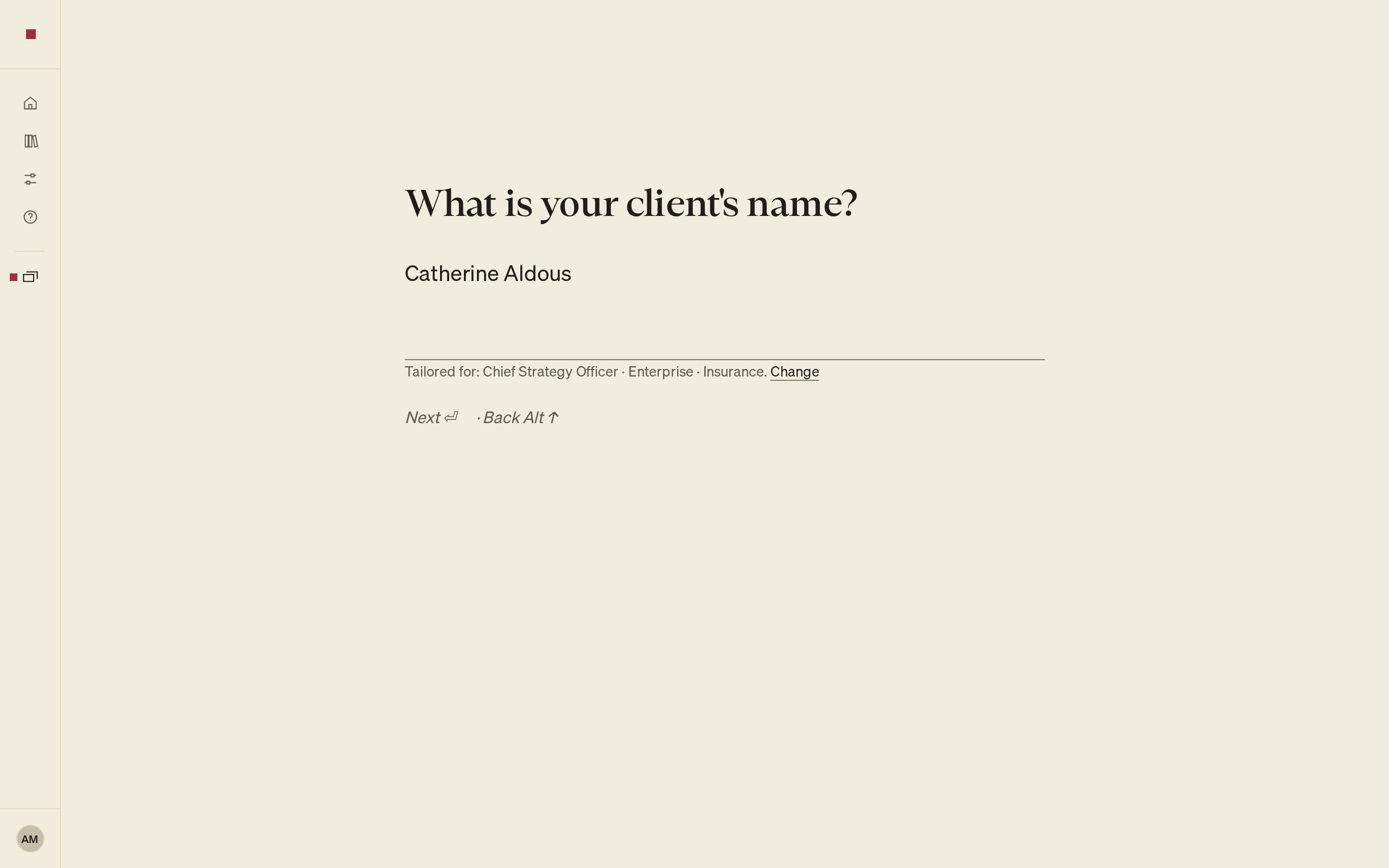
Give the name of the person you are presenting to. The client is their company, which you named before Frame.
Press Enter, and Frame moves on to the next question. If you gave a full name and lookups are switched on for your account, PointProven looks the person up in the margin meanwhile. It says Looking for … at …, then asks Is this …? with their title and company. Select Yes to use the match, or No, choose by hand to fill in the form How should this deck be tailored? yourself. The lookup searches the deck's client only.
PointProven keeps only what tailors your deck: the person's role and seniority, and the company's size and industry. A line then reads Tailored for: …. Select Change to edit it. The tailoring shapes the prompts in Consider. You can see and delete the profiles in the Library.
Add your material
At Do you have material you can upload to start from?, add files or notes and select Continue, or select Continue without files. Files keep reading while you answer the next questions. See Upload files and notes.
Choose the structure
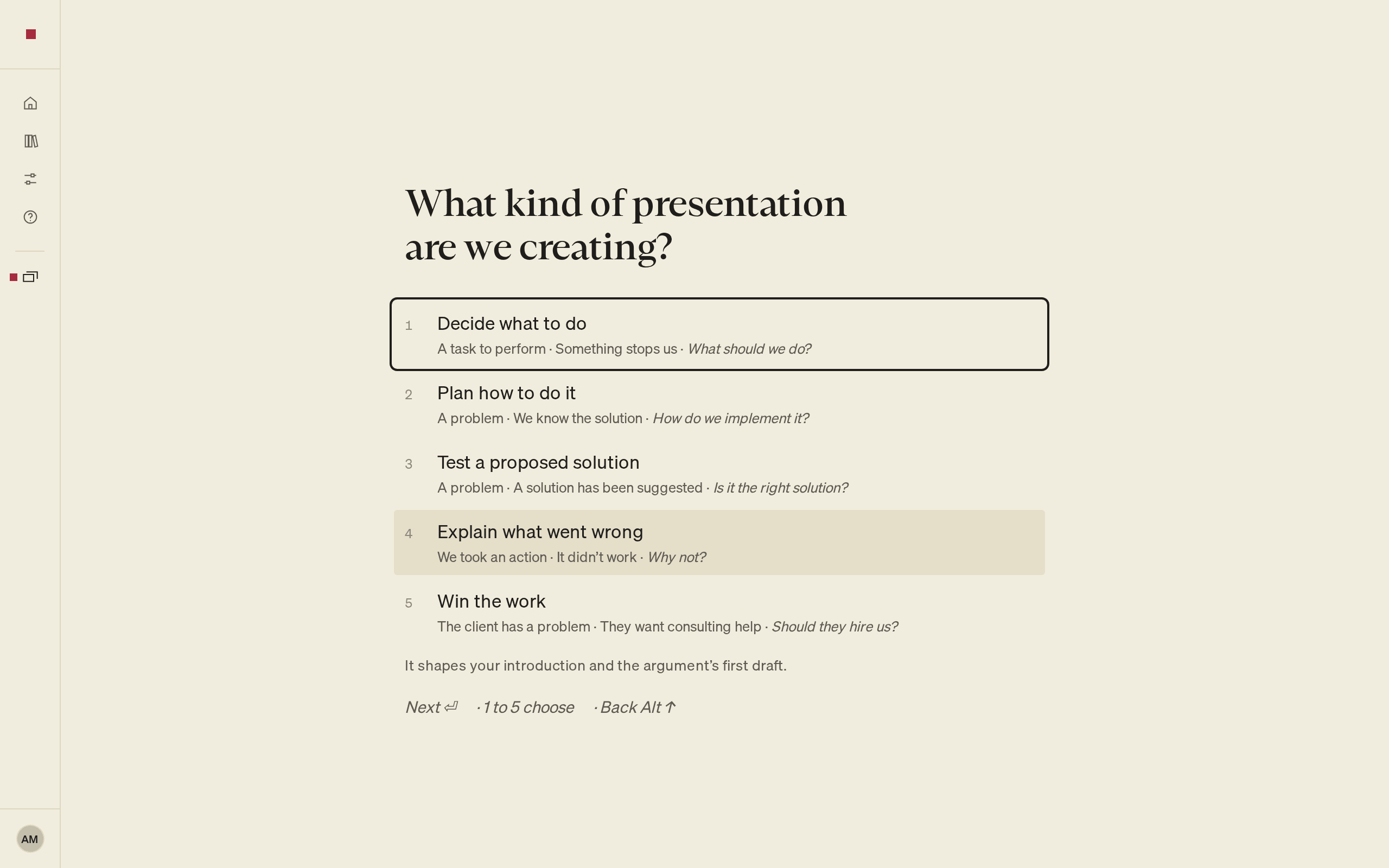
At What kind of presentation are we creating?, choose one of five structures:
- Decide what to do
- Plan how to do it
- Test a proposed solution
- Explain what went wrong
- Win the work
Each shows a line of Situation, Complication and Question. For Decide what to do, the line reads: a task to perform, something stops us, and the question "What should we do?" The structure shapes your introduction and the argument's first draft.
Press 1 to 5, or select a structure, then press Enter.
To change it later, press ⌘K (Ctrl+K) and select Change the structure, or go back to the question with ⌥↑ (Alt+↑).
Write the Question
The Question is the one question your presentation answers.
- At What question does this deck answer?, write one question. Once you have named who you present to, it reads What question will this deck answer for …?
- Press Enter.
A good Question: "Where should Meridian enter, and in what order?"
The structure gives the Question its form. For Win the work, it is "Are we the right people to help you with …?"
Once you write the Question, the deck gets a name. Until then it is Untitled deck. Beside your answer, Frame says Deck named “…”, from your question. Select Rename to type a different name. That line goes once you rename the deck; after that, rename it on Home.
Write the Complication
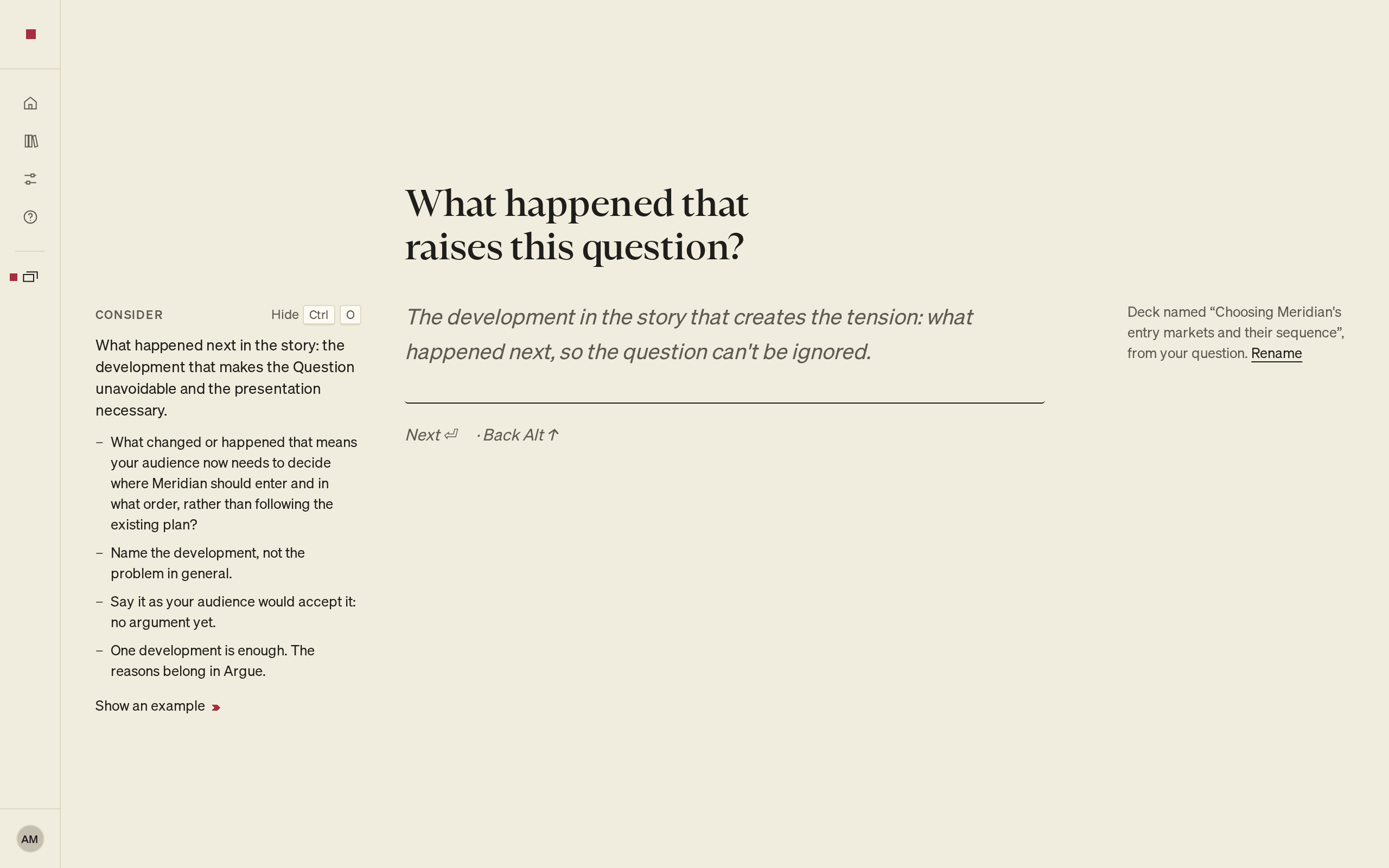
The Complication is what happened next: the development that makes the Question unavoidable and the presentation necessary.
- At What changed to raise this question?, write what changed.
- Press Enter.
A good Complication: "Three acquisitions were lost on price in eighteen months, and the incumbents have started defending premium." Name the development, not the problem in general. One development is enough. The reasons belong in Argue.
For two structures, the Complication is a solution, so the heading asks for it:
- Plan how to do it: What solution has the client settled on?
- Test a proposed solution: What solution has been suggested?
On a deck for your own firm, Plan how to do it asks What solution has your firm settled on? instead.
Name the solution in a sentence, not the problem it solves. Consider then asks who settled on or suggested it, and why.
What else helps depends on the structure. For Win the work, Consider asks what help the client wants from you.
Write the Situation
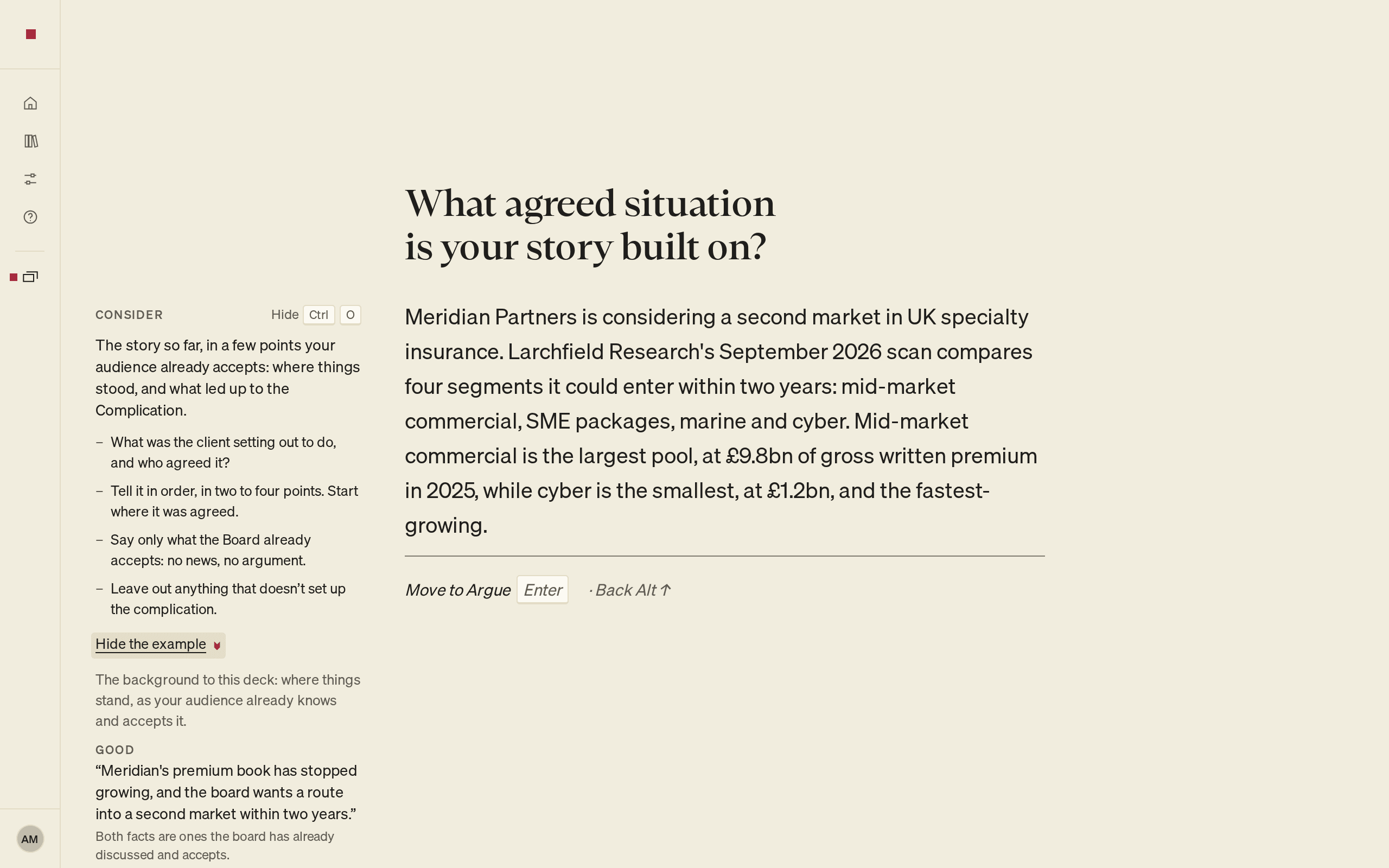
The Situation is the story so far, in a few points your audience already accepts: where things stood, and what led up to the Complication. It holds no news.
- At What situation is your story built on?, write two to four points, in order. Start with what your audience already accepts.
- Press Enter.
A good Situation: "Meridian's premium book has stopped growing, and the board wants a route into a second market within two years." A figure the audience has not seen yet is news. Put it in the Complication instead.
Use Consider
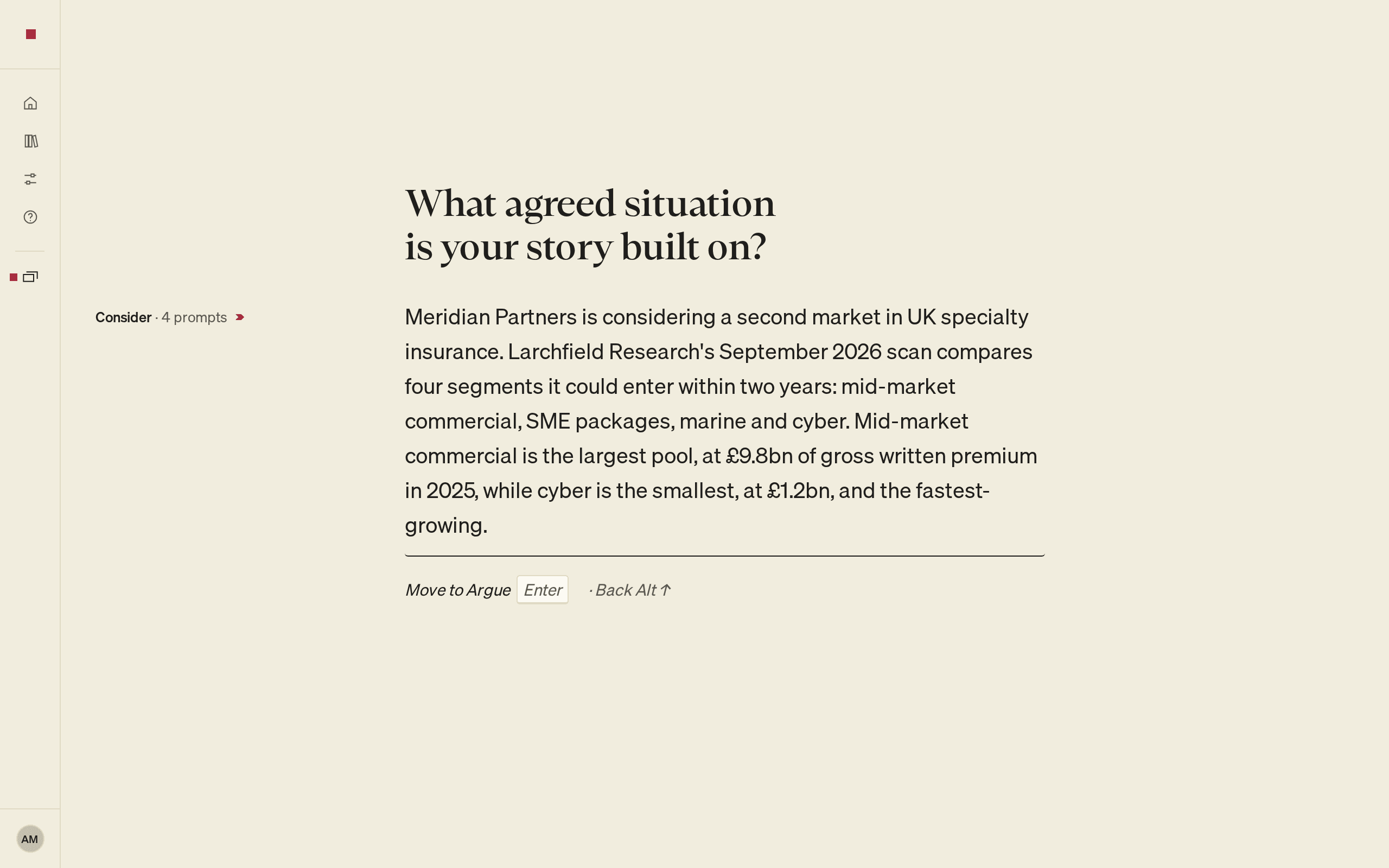
At the Question, the Complication and the Situation, Consider sits in the left margin. It gives written guidance for the answer. It is not an AI suggestion. It is open while the field is empty and folds to one line, such as 3 prompts, once you have written and paused. Select that line, or press ⌘O (Ctrl+O), to open it again. Select Hide to fold it. PointProven remembers that for this deck and question in this browser.
To see a good and a poor answer, select Show an example in Consider.
Apply or ignore what PointProven suggests
PointProven drafts nothing when Frame opens. Draft it for me appears beside the Situation when all of these conditions apply:
- Your deck has material.
- You have written the Question and chosen a structure.
- You have never typed a Situation.
Select Draft it for me to request a draft. The right column shows Drafting… while PointProven works. To stop the draft, select Cancel.
The draft arrives in the right column, marked Suggested. PointProven suggests an answer only while the Situation is empty.
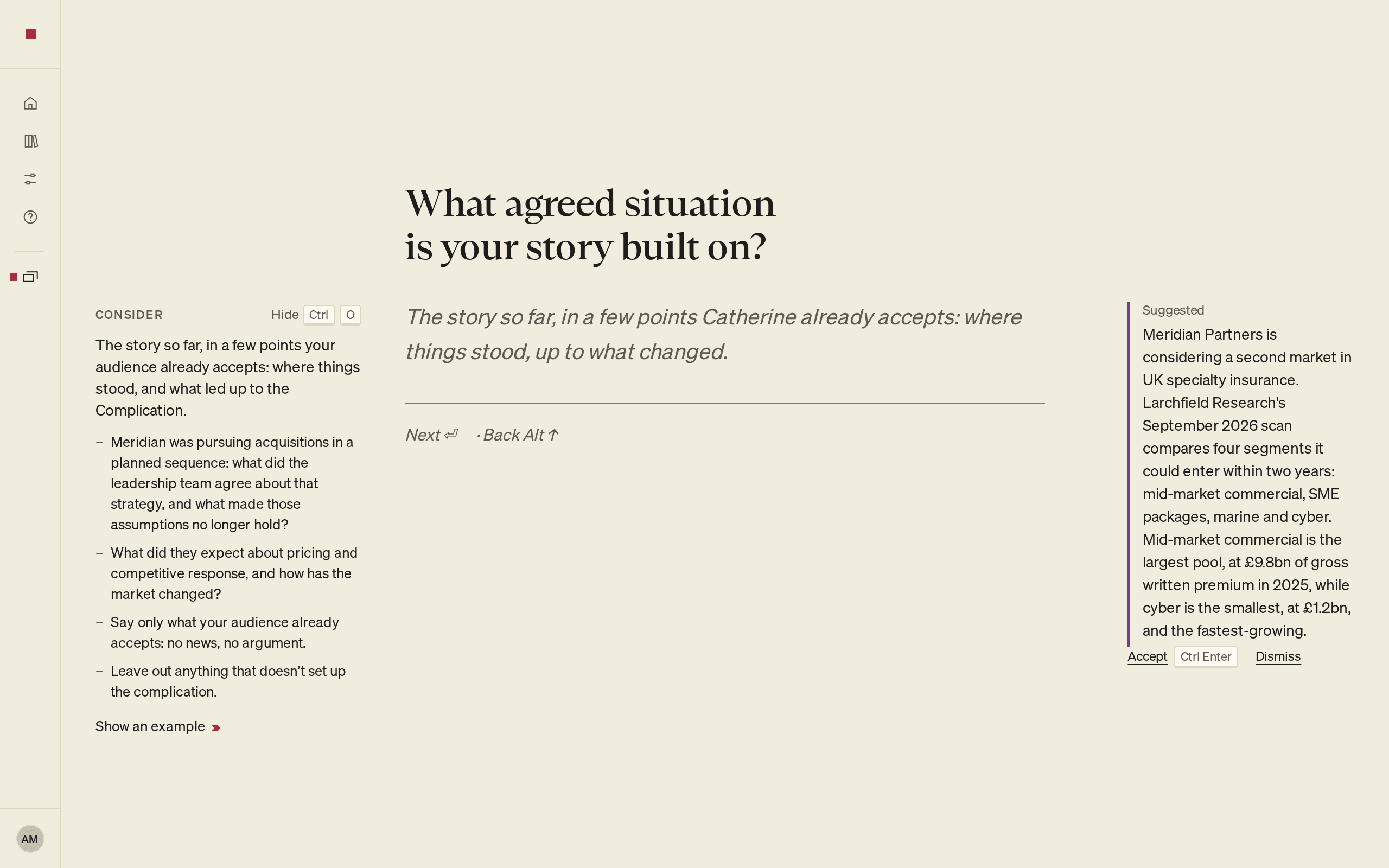
For the suggestion, do one of the following:
- To use it, select Apply, or press ⌥Enter (Alt+Enter). The text becomes your answer. To take it back, press ⌘Z (Ctrl+Z).
- To remove it, select Dismiss.
- To ignore it, write your own answer. Nothing is added unless you apply it.
When you write a Question, PointProven may offer a Suggested rewording of your question, marked From your question and its structure. Apply or dismiss it the same way. Your Question stays as you wrote it unless you apply it.
If the drafting is cancelled or produces nothing, Frame says Nothing was drafted. Select Draft it for me to try again. Without material, Frame makes no drafts. You write every answer yourself.
Know when Frame is done
Frame checks one thing for you: whether your Question fits the structure you chose. When you pause after changing the Question, the Complication, the Situation or the structure, PointProven reads the Question. If it asks a different kind of question, a Logic mark (a triangle) appears beside it with a line such as This Question doesn't ask what Decide what to do answers. Ask it as “What should we do…?”, or choose another structure. Reword the Question or change the structure, and the mark clears.
The mark never stops you: Enter still moves on. No mark does not prove the Question is right: when the check is unsure, it shows nothing. Frame does not yet check whether each Situation line sets up the Question. See How quality checks work.
Frame is done when the Question, Complication and Situation each hold an answer, and the Question passes these tests:
- It is one question, not two.
- It follows from the Complication.
- A recommendation or a finding can answer it.
Once every question has an answer, the line beneath the Situation reads Next: Argue. Press Enter, or select it. If an earlier question is still empty, Enter takes you there first.
From any question, you can also select Next: Argue at the bottom of the page, or press ⌘⏎ (Ctrl+Enter). Until Argue can open, it says what Argue needs.
Pressing Enter, or ⌥↓ (Alt+↓ on Windows), takes you to the next question in order, even after you go back. To go back a question, press ⌥↑ (Alt+↑ on Windows); the line beneath every question shows it as Back.
FAQs and common issues
Why does Frame ask for the Question first?
Starting with the Question helps you write a Situation and Complication that set it up. The finished deck reads Situation, Complication, Question, then your answer.
Why is Draft it for me missing?
It appears beside the Situation only when the deck has material, you have written the Question and chosen a structure, and you have never typed a Situation. Without material, you write every Frame answer yourself.
Why does Enter take me to an earlier question?
If an earlier question is empty, Enter takes you there before moving to Argue. After you go back, Enter still follows the questions in order.