How do I review and export my presentation?
How to review unresolved issues and download a PowerPoint file in Deliver.
Updated 11 November 2026
Introduction
In the Deliver step, under the line Check the deck, then export it, you review your deck one last time and export it as a PowerPoint file. The lines on this page tell you what to look at first. None of them blocks the export.
Deliver opens once one slide whose layout is not fixed is ready in Design.
How to
Use Consider before sending
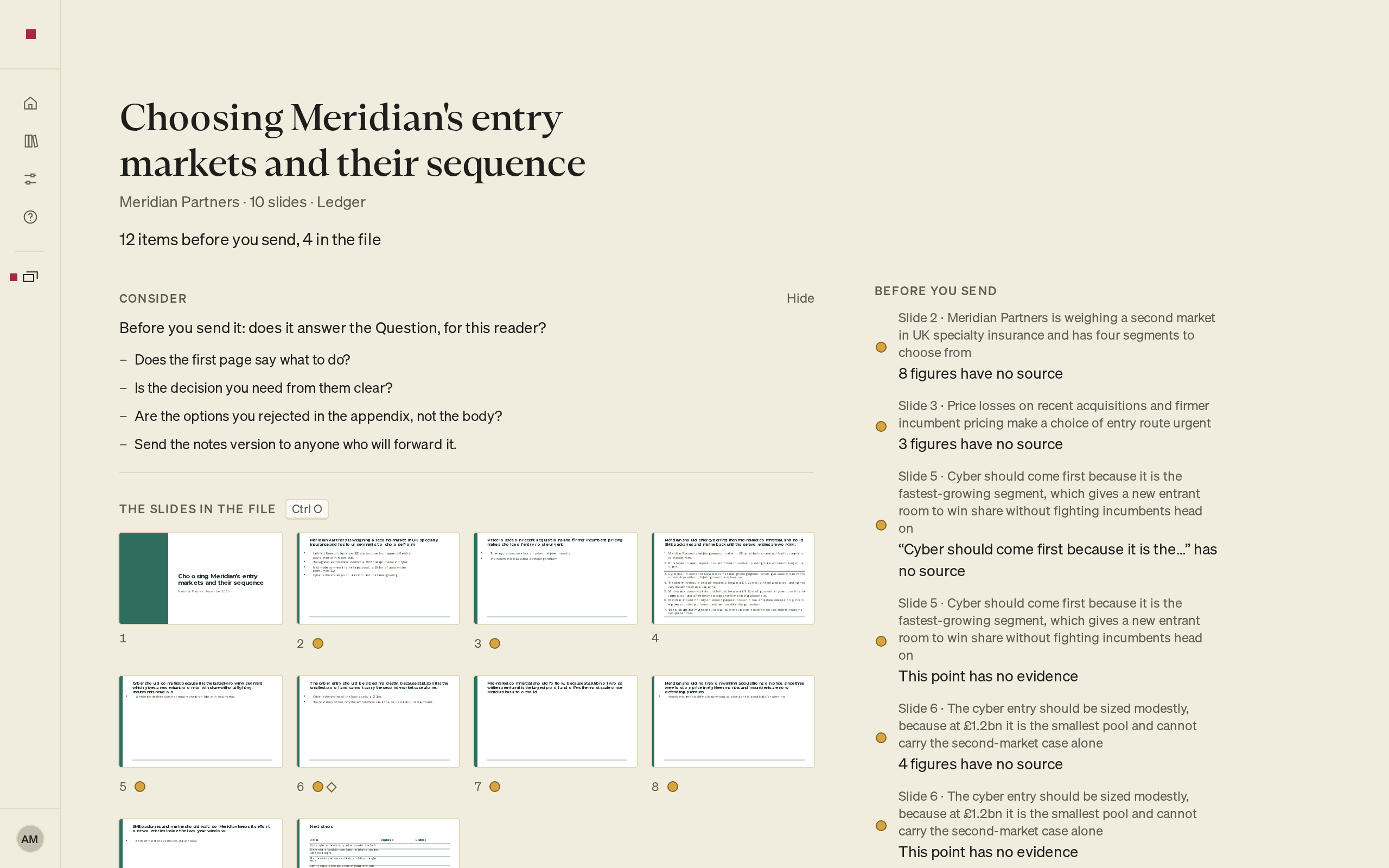
Above the slides, Consider gives you questions to review before you send the deck. The questions depend on the kind of presentation you chose in Frame. For example: "Before you send it: does it answer the Question, for this reader?"
- It is open until you first export, then folds to one line, for example Consider · 4 prompts. Select the line to open it again.
- Select Hide to put it away. PointProven remembers this for the deck in this browser.
- To open it from the keyboard, press ⌘K (Ctrl+K) and choose Open Consider. Consider has no shortcut of its own here, because ⌘O (Ctrl+O) moves into the slides in the file.
Read the lines before you export
When Deliver opens, PointProven checks the deck and the page reads Checking the deck. Then a sentence counts what it found, for example "3 items before you send, 2 in the file", and the lines appear in groups:
- Before you send lists what a reader could challenge: a figure with no source, a figure not found in its source, a figure cited by hand and not verified, a figure cited from a replaced source, a claim with no evidence, a claim that contradicts another, or a needs-data mark still open.
- In the file lists what the file will show: a slide that still overflows, a chart with no data, a source line that misses a figure, a next step with no deadline, or a part left out of the file, such as a cover with no title.
- Goes with the file tells you what else the file carries, such as your speaker notes. It is information, not an item to fix.
To fix a line:
- Select the line. PointProven takes you to the slide or step that holds the item.
- Fix the item there.
- Return to Deliver. You land on the same line, or on the next one still open.
A line that groups several items shows Show. Select it to list them.
If a line says items are unchecked and offers Check again, select it to run that check again. For what the checks look for, see How quality checks work.
See the slides in the file
Beside the lines, The slides in the file shows each slide as it will export. Pointing to a line outlines its slides. Select a slide to open it in Design. Press ⌘O (Ctrl+O) to move into the slides, and again to move back. A slide marked Left out stays out of the file until you finish it.
Export your deck
PointProven names a deck after its Question. To change the name, use either method on Home:
- In the deck's ⋯ menu, select Rename.
- Select the deck and press F2.
To export:
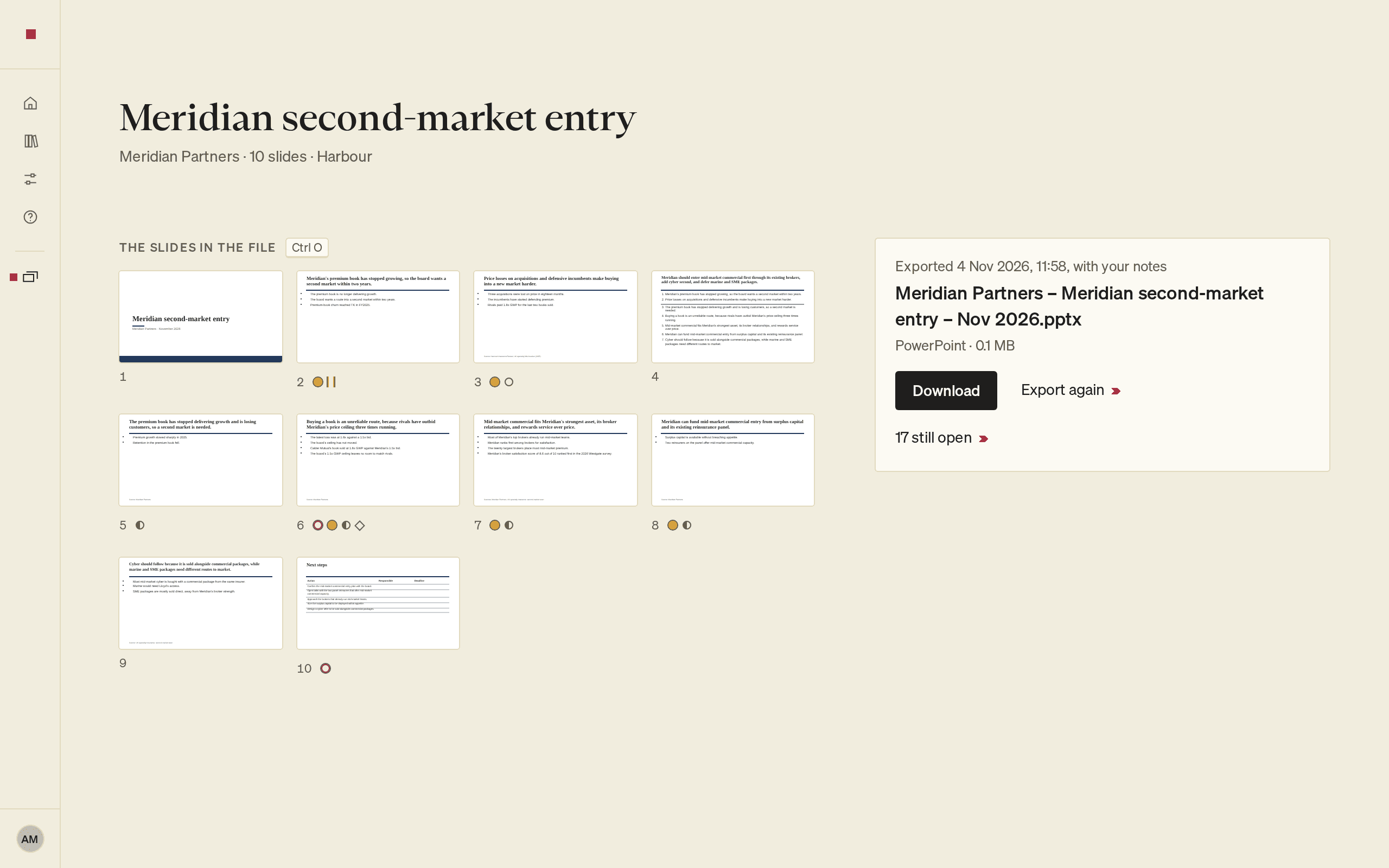
- Read the file name on the page. It contains the client, the deck's name and the month, for example "Meridian – Pricing review – Oct 2026.pptx". If the deck has no name yet, the file name uses "Untitled deck" instead.
- Select Export at the bottom of the page, or press ⌘⏎ (Ctrl+Enter). If Before you send or In the file still has lines, the button reads Export anyway.
When the export finishes, a file card shows when you exported, the file name, and PowerPoint with the file's size.
Download the file
- On the file card, select Download.
- Open the file in PowerPoint.
The text, charts and tables stay editable.
PointProven keeps the file with the deck. If lines were still open, the card shows how many, for example 2 still open. Select it to see them.
The file is made for PowerPoint for Microsoft 365, on Windows and Mac, and PowerPoint for the web.
Export with or without your speaker notes
Export includes the speaker notes you wrote in Outline. If any slide has notes, Export without your notes sits under the file name, beside the slides. Select it to leave the notes out of the file.
After an export, the card offers the other version: Export without your notes or Export with your notes. PointProven keeps the latest file of each. The card's Also kept line shows the other file, with its own Download.
Export again after changes
When you change the deck after an export, Deliver shows Exported with the date and changed since. The lines come back, and so does Export. Read the lines, then export and download as before.
The new file replaces the earlier file of the same version. Until then, Download the [date] file gets the earlier file.
On Home, an exported deck's cover carries a small mark. The mark turns hollow when the deck has changed since its last export.
To export an unchanged deck again, select Export again on the file card.
FAQs and common issues
What if the export does not finish?
If the page says The export didn't finish. Your deck is intact., select Try again. If it fails a second time, PointProven reports it for you and shows a reference number.
Which PowerPoint versions is the file made for?
PowerPoint for Microsoft 365 on Windows and Mac, and PowerPoint for the web. The text, charts, and tables stay editable.
Does exporting resolve the open findings?
No. Export is available even with open lines. The file card shows how many remain, such as 2 still open. Select that count to see them.
Related articles
Charts and tables
Turn part of a slide into a chart or a table in Design, fill its data by typing or pasting, and cite where the numbers come from.
After you export
What the exported PowerPoint file contains, how to edit and restyle it in PowerPoint, and how to keep the deck and the file in step when you change one of them.