How do I contact support?
How to report a problem, suggest an idea, or send the team a private message.
Updated 12 November 2026
Introduction
There are two ways to reach the PointProven team from the app:
- The feedback board, for problems and ideas. Select Feedback in the bottom corner of any page. Other testers can see what you post, so leave out client names and material.
- The Help page, for anything private, such as your account or a problem that involves a client's material. The team replies by email.
If you cannot sign in, email support@pointproven.com. For common problems, try Troubleshooting first.
How to
Report a problem or suggest an idea
- Select Feedback in the bottom corner of the page. You can also choose Report a problem or Suggest an idea on the Help page, or press ⌘K (Ctrl+K) and choose them.
- Write your post. Say which step you were in and what you expected to happen.
- Post it. The team reads every post before other testers can see it.
You don't need a separate account: the board signs you in with your PointProven account. Other testers see your post under a stand-in name, such as Tester 4F2A9C, never your name or email address. They can vote on it and comment.
The post records the name of the page you were on, such as Outline. It does not attach your deck, its text, your material or a link to the deck.
Send a private message
A message can be up to 4,000 characters.
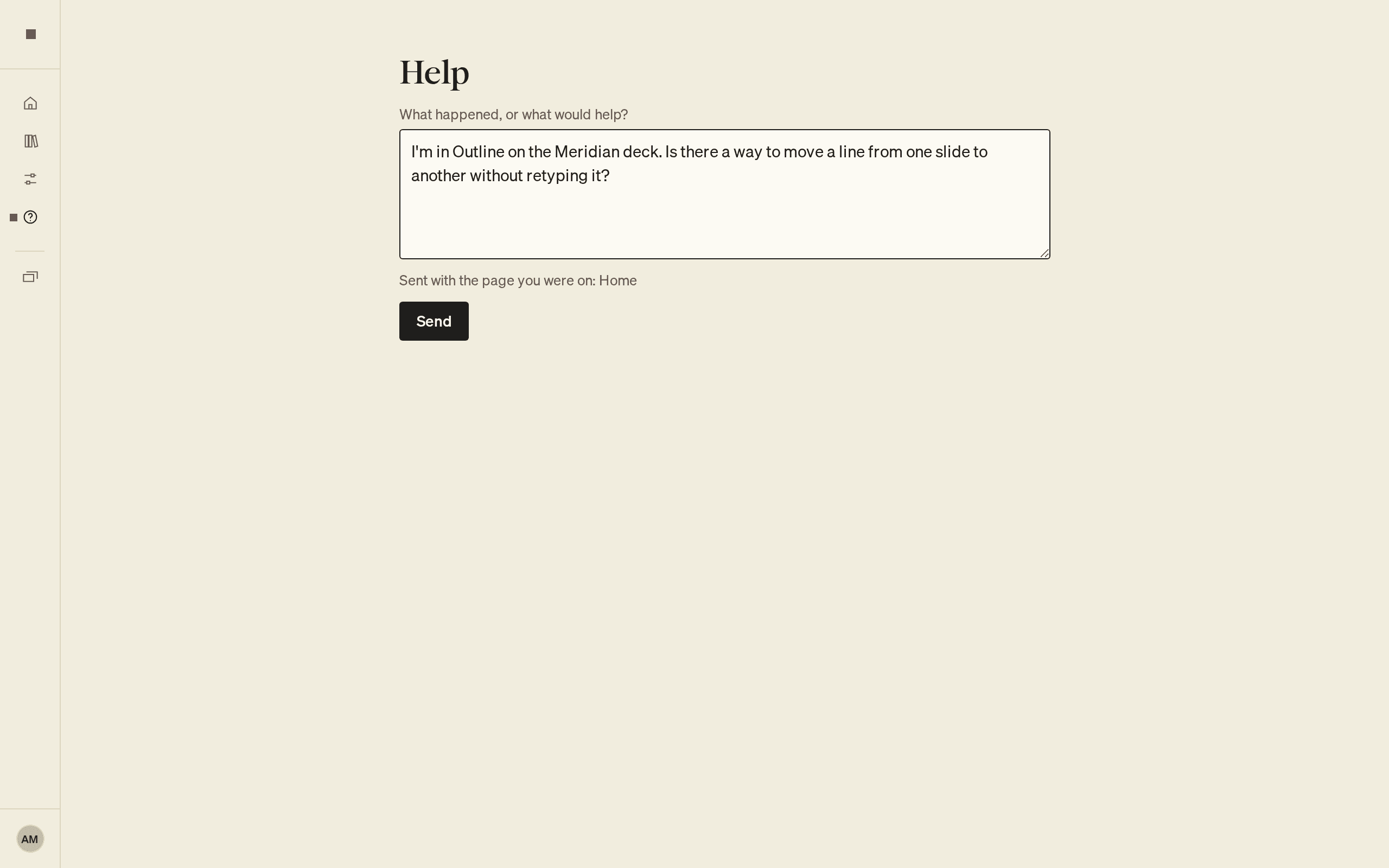
- Select Help in the menu down the left of the page.
- Under What happened, or what would help?, describe the problem or the idea. Say which step you were in and what you expected to happen.
- Select Send.
The form changes to Sent. We’ll reply by email to your email address. The reply goes to the email address you sign in with.
What is sent with your message
Below the field, the form shows Sent with the page you were on: and a page name, for example Argue or Library. This tells the team where the problem happened.
Your message reaches the team with three things:
- the text you wrote
- the name of the page you were on before you opened Help: Home, Library, Settings, Question zero, or one of the steps Frame, Argue, Outline, Design or Deliver
- your account's email address, so the team can reply
For page context, the form sends the page's name only. It does not attach your deck, its text, your material or a link to the deck. If the team needs a detail from your deck to help, describe it or paste the words into your message.
If PointProven cannot tell which page you were on, the line reads Home.
See Data and privacy for the separate data-handling guide.
FAQs and common issues
What if I cannot sign in?
The Help page needs you to be signed in. If you cannot sign in, for example because you have lost the device you use for two-step verification, email support@pointproven.com. Use the address you sign in with. Describe what happened. See also Troubleshooting.
Why did my message not send?
If the form says Write what happened first, add your message. If it says That didn’t send. Your message is still here. Try again, select Send again. Your text stays in the field.
How do I report a check I think is wrong?
Use Report a problem, or the Help form if the check involves client material. Say which check you think is wrong and where it appears: the step, and the slide or point. See How quality checks work.