How do I build my argument?
How to develop your answer and supporting points in Argue.
Updated 18 November 2026
Introduction
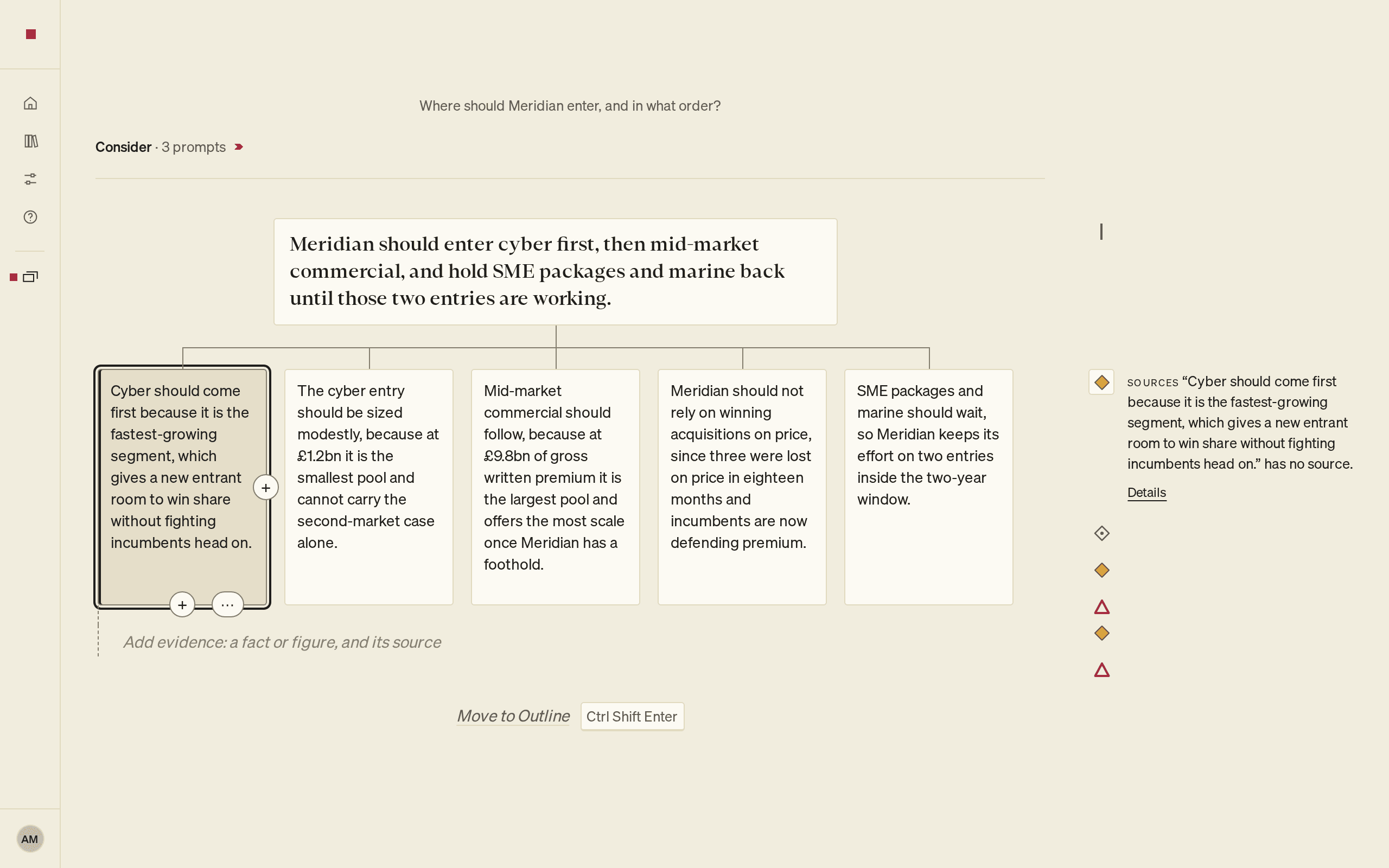
In Argue you build your deck's argument on a map: your answer at the top, the points that prove it beneath, and evidence under each point. Argue opens once you have written your question in Frame; see Define the question.
How to
Write your answer
- Open the Argue step. Your Question shows above the map.
- Select the top card and type your answer to the Question, in one sentence.
- Press Esc or F2 to stop writing.
Add the points that prove it
A point is a reason the point above it is true. Aim for three to five under the answer.
- Select the answer.
- Press Tab, or select the + beneath the card, to add a point beneath it.
- Type the point.
- To add the next point beside it, press Enter.
Each point has two to four sub-points beneath it: the claims that make it. Select the point and press Tab to add one.
Use the arrow keys to move around the map. To write in the selected card, press Enter or F2.
Add evidence under each sub-point
Evidence is a fact or figure that shows a sub-point is true, with its source. It sits under a sub-point, never directly under a point or the answer.
- Select a sub-point. Its evidence tray opens beneath it.
- Select the last line, Add evidence: a fact or figure, and its source, and type the fact.
- To cite the fact, open the line's menu with Shift F10 or a right-click.
- Choose Add a source.
- Search your material for the source, then choose it.
A point holds sub-points, and a sub-point holds evidence.
Rearrange and delete
Select a point or a sub-point, then select ⋯ (or press Shift F10). The menu offers Merge with… and Move to… when there is a card to merge with or a place to move to, and always Delete; a sub-point's menu also offers Add evidence. The answer has no menu. Delete sends the card and everything under it to the bin. ⌘Z (Ctrl+Z) undoes any change.
Use Consider
Above the map, Consider gives a few prompts for your answer and its points. They follow the kind of presentation you chose in Frame and, when the client's profile has it, the size of the client's company. Consider is open while the answer is empty and folds to one line once you have written it. Press ⌘O (Ctrl+O), or select the line, to open or close it. If you hide it, it stays hidden for this deck in this browser.
Consider is written guidance, not an AI suggestion.
Win the work
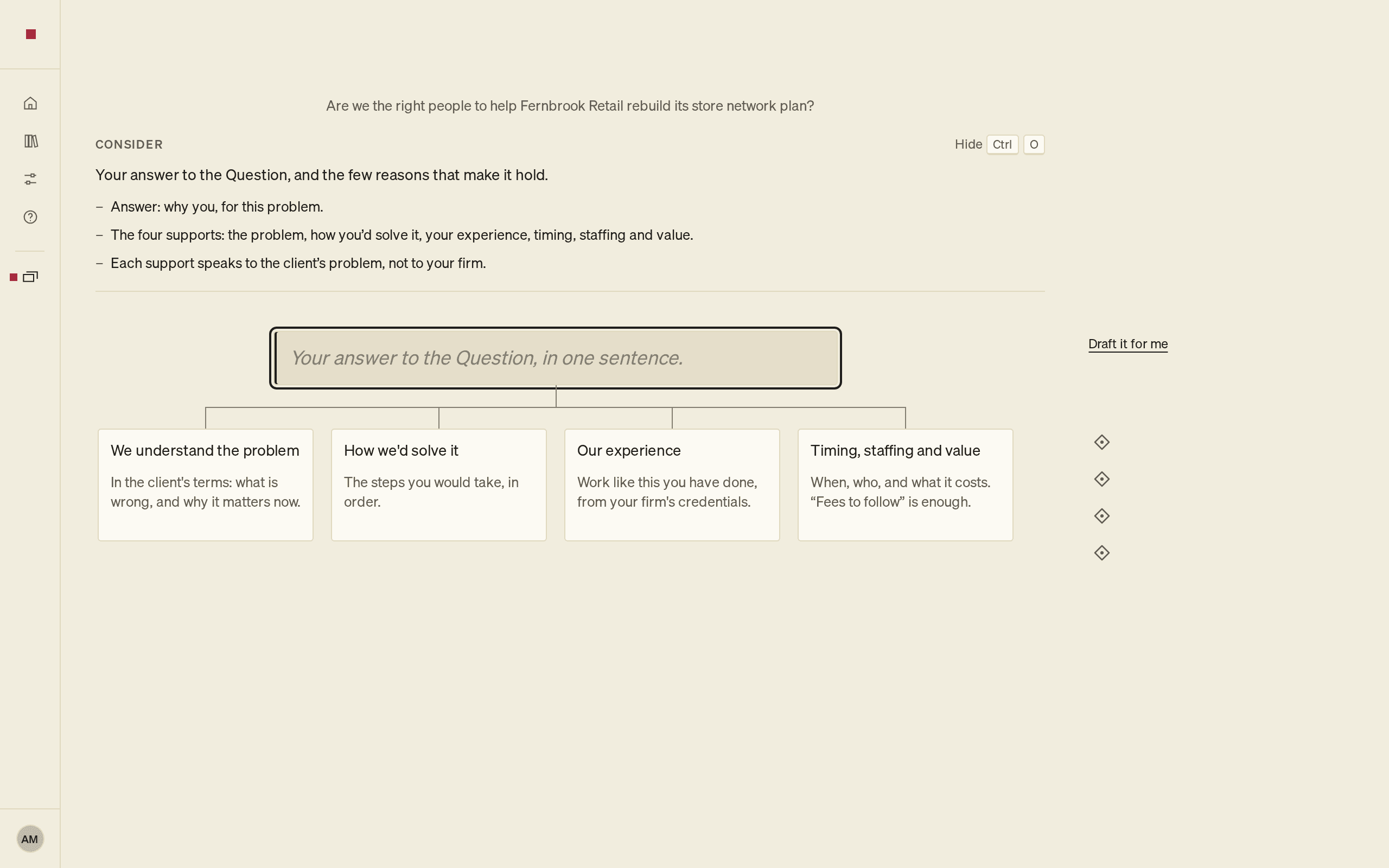
If you chose Win the work in Frame and your answer is empty, Argue opens with four cards instead of a blank map:
- We understand the problem: in the client's terms, what is wrong and why it matters now.
- How we'd solve it: the steps you would take, in order.
- Our experience: work like this you have done, from your firm's credentials.
- Timing, staffing and value: when, who, and what it costs. "Fees to follow" is enough.
Write under each card as you would on any other point. ⌘Z (Ctrl+Z) undoes the cards in one step.
Once you start writing the cards, PointProven checks that each of the four supports is still there. A card left with only its name, or a support whose card you deleted, gets a Structure mark (a square), for example No experience yet: work like this you have done. Win the work answers with four supports. Select Go to it to write it, or Not needed for this deck if this pitch does without it. PointProven remembers that choice in this browser.
The check only looks for the four supports. It does not judge whether what you wrote is strong or complete.
Use what the AI offers
A drafted argument
If your deck has material, PointProven starts drafting an argument when you arrive at an empty Argue. The page shows Drafting your argument from your material where the argument will go, with a slow line moving under it, and Cancel. Typing your answer stops the draft.
With no material, select Draft it for me beside the answer. The draft then comes from your Situation, Complication and Question, and from the structure you chose, and it cites no evidence.
The finished draft fills the page and is yours to edit at once. There is nothing to take. Where the draft came from shows at the foot of the page, for example From Board pack, or From your Situation, Complication and Question when it had no material.
⌘Z (Ctrl+Z) does not take a first draft back. To clear the page and write your own, select Start from scratch, the underlined link above the checks. It stays there while Argue holds anything. It clears all of Argue, not only the draft:
- Every point goes to the bin, including points you wrote after the draft, and the answer is emptied.
- On a Win the work deck, the four cards stay with their names. What is under them goes to the bin.
This is one change. ⌘Z (Ctrl+Z) brings it all back, and you can also restore points from the bin.
A redraft when your question changes
If you change your Question, Complication or Situation in Frame after writing your answer, Argue shows The argument may no longer answer the question.
- Select Keep to keep the argument as it is.
- Select Redraft to get a new version. When The redraft is ready, select Show the redraft to compare it with yours. Choose Take the redraft or Keep yours.
Taking the redraft puts your points in the bin and replaces your answer; undo brings both back.
A title from your answer
Once you write your answer, the right column may show a Suggested title taken from it. Select Apply to make it the deck's title, or Dismiss. PointProven makes it from your answer without AI. Frame usually names the deck from your Question already, so this may replace that name.
Checks on your points
The right column has two tabs while Challenge me is available: Checks and Challenges. Checks shows the checks on the point you've selected, beside it. Select another point to see its checks. The tab says how many checks the whole argument has, for example Checks · 6.
Each check starts with its type in one bold word: Structure, Logic, Source or Evidence, each with its own shape. For example, a point with only one or two points beneath it shows Structure Too few points here. Argue shows those four. Wording checks appear from Outline. See How quality checks work.
When your material sets a limit
Your material may set a limit, such as a budget, a share, a multiple, a count or a length of time. PointProven checks your answer against it with the Logic check Keeps to the limits its material sets. The finding quotes the sentence in your material that sets the limit, in one of three ways:
- This recommendation breaks a limit your material sets: “…”. The margin says Change the recommendation to fit the limit, or justify moving it.
- “…” breaks a limit your material sets: “…”. This one names the figure in your answer that breaks the limit. The margin gives the same advice as above.
- This recommendation doesn't show it meets a limit your material sets: “…”. The margin says State the figure that meets the limit, with its source.
Challenge your argument
Once your answer has at least two points, select Challenge me beside the answer, or press ⌘K (Ctrl+K) and choose Challenge me. PointProven reads your argument and looks for what it leaves unsaid. It takes about 25 seconds.
Each press brings at most two challenges, on the Challenges tab. Each one appears as a Gaps mark (a broken ring) on the point it concerns, labelled Unstated premise or Missing alternative. Answer a challenge by editing the argument, or select Dismiss. If nothing turns up, it says No material gap found.
You get two presses for each version of the deck. Edit the argument and you get two more. Challenge me only runs when you press it. No challenge does not mean the argument has no gaps.
Check you're ready for Outline
Outline opens when your answer and at least one point beneath it are written. Then select Next: Outline at the bottom of the page, or press ⌘⏎ (Ctrl+Enter). Until then, it says what Outline needs.
That is the minimum. A strong argument usually has:
- an answer in one sentence that answers the Question
- three to five points under the answer
- evidence or sub-points under every point
- a source for every figure
FAQs and common issues
Can a point have both sub-points and evidence?
No. It has either points beneath it or evidence. If you add a point beneath one with evidence, the evidence moves under the new point.
Does taking a redraft replace my argument?
Yes. Taking the redraft puts your points in the bin and replaces your answer. Undo brings both back.
Why is Outline still locked?
Write your answer and at least one point beneath it. That unlocks Outline. Three to five points, evidence or sub-points under each, and sources for figures are advice for a stronger argument, not the unlock requirement.
Related articles
Define the question
Name who you present to, choose a structure, then write the Question, Complication and Situation in the Frame step, decide what to do with PointProven's suggestions, and know when Argue can open.
Plan your storyline
Turn your argument into slides in the Outline step, with an executive summary, Next steps, an appendix and speaker notes, and know when it is ready for Design.