How do I mark a figure to find later?
How to use TK marks, find missing figures, and resolve them before sending your deck.
Updated 12 November 2026
Introduction
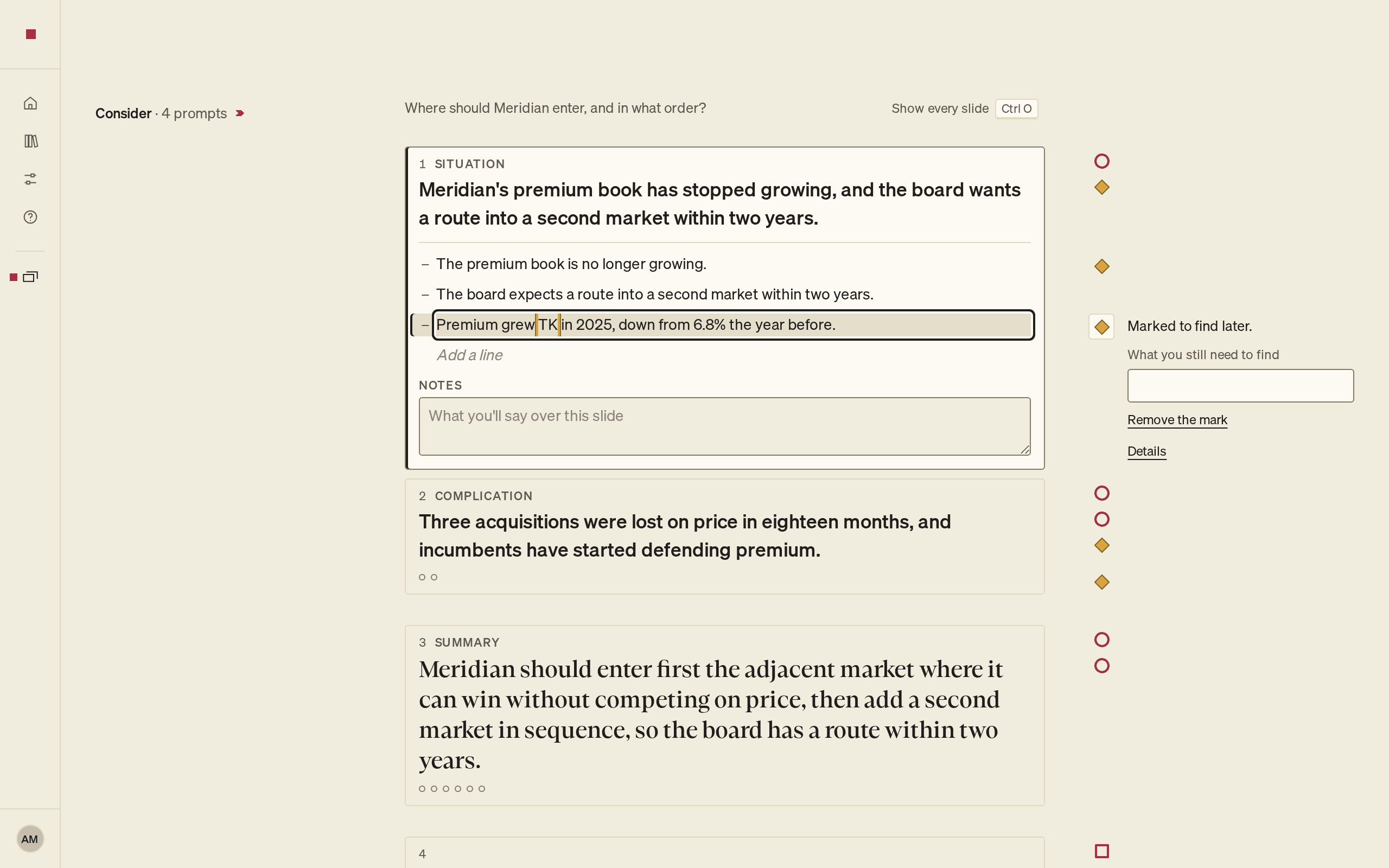
When you know a figure belongs in a sentence but do not have it yet, type TK in its place. TK is the placeholder journalists use for a figure still to come. PointProven marks it, lists it before you export, and keeps the mark until you remove it.
How to
Make a mark
In Argue and Outline, while you write:
- Type
TKin capitals, as a word on its own. - Type a space, a punctuation mark, or press Enter.
The letters TK now sit between two short amber lines. TK stays plain text if it is part of a word, such as "TKO", or written in lower case. To undo the mark and keep the letters, press ⌘Z (Ctrl+Z) straight after.
To mark words you have already written:
- Select the words, or put the caret in a word.
- Press ⌘K (Ctrl+K) and choose Mark something to find later.
In Frame, TK stays plain text and gets no mark.
See your marks
Each mark shows in the right column beside its item as Needs data, a diamond filled in amber. It has no category word, because the mark is yours and not a check. Select the mark to see its finding, Marked to find later.
Your marks are never held back and appear in Argue, Outline, Design and Deliver. The limit on other marks per slide does not hide them.
In the finding, you can type a note under What you still need to find, for example "FY2025 churn, from the client's finance team". The note then replaces Marked to find later. in the right column, and shows in Deliver.
In Design, a slide card that holds a mark shows the same Needs data mark.
Find your marks
- In Argue and Outline, press F8 to go to the next issue, and Shift+F8 to go to the one before. Your marks are among the issues.
- In Design, F8 goes to the next slide card with an issue.
- In Deliver, each open mark has its own line under Before you send: A figure still needs data, or Needs data: followed by your note. A TK typed in a slide's speaker notes reads The speaker notes still have a TK. Select a line to go to the item in Outline.
Use a suggested figure
When your material holds a figure that fits a TK, PointProven offers a Suggested figure beside it, with the file and page it comes from. Select Apply (⌥Enter or Alt+Enter). The figure replaces TK, the mark goes and the figure is cited, in one change. Or select Dismiss.
In Frame, Situation and Complication can offer a Suggested figure for a TK in the same way.
Resolve a mark yourself
- Replace TK with the figure.
- Cite its source. See Cite a source for a figure.
- Select the mark in the right column and choose Remove the mark.
The mark stays until you remove it, even after you fill it in. If you type over TK, the mark stays where the letters were and its finding reads The words it marked were taken out.
⌘Z (Ctrl+Z) brings back a mark you removed.
Export with marks open
Open marks do not block the export. While Before you send has lines, the button reads Export anyway. If you fill in a figure yourself, remove its mark after citing the source. The mark isn't exported, but the letters TK are, so fill in each figure before you send the deck. See Review and export.
FAQs and common issues
Why is the mark still there after I replace TK?
Editing the figure does not remove a manual mark. Cite the source, then select Remove the mark. If you type over TK, the finding can read The words it marked were taken out.
Does typing TK in Frame create a mark?
No. TK stays plain text in Frame, although Situation and Complication can offer a Suggested figure for it.