How do I replace or delete a file?
How to manage files in the Library and update figures that cite an older version.
Updated 16 November 2026
Introduction
In the Library, you can rename a file, replace it with a newer version or delete it. A deck that uses a replaced file moves to the newer version, and any figure cited from the old file is marked for you to update.
To open the Library, select Library in the menu down the left of the page. The Library lists your material by client.
A file marked couldn't be read cannot be renamed or replaced. You can still delete it.
How to
See which decks use a file
Each file shows the decks that use it, for example Used by followed by the deck titles. A file with no Used by line is not in any deck.
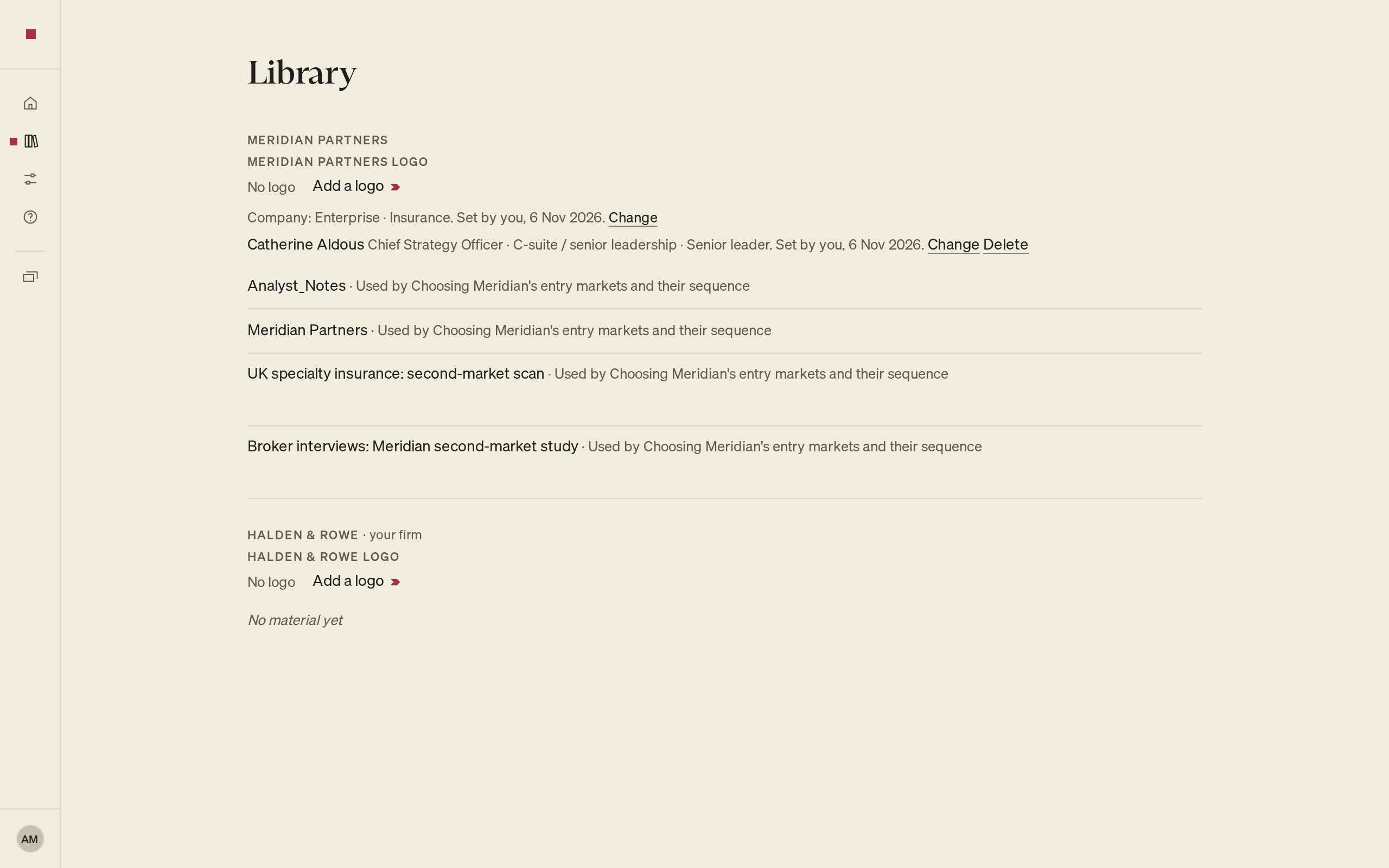
Check this line before you replace or delete a file, so you know which decks it affects.
Rename a file
- On the file's line, select Rename. You can also move to the line and press F2. Tab moves to the next file or action.
- Type the new name.
- Press Enter. To keep the old name, press Esc.
Replace a file with a newer version
Use this when a client sends an updated report or a later draft of the same file.
- On the file's line, select Replace with a newer version.
- Choose the new file. PointProven reads PDF, PowerPoint (.pptx), Word (.docx), spreadsheet (.xlsx and .csv) and text (.txt) files.
PointProven may refuse the file and say why, for example That file already has a newer version, A file with the same content is already in the Library, That file is too large or That file is password protected. Add one file at a time.
When the newer version has been read, it takes the old file's place in the list. Every deck that used the old file now uses the newer version. The old file moves to the Library's Deleted shelf.
Update figures cited from a replaced file
A figure cited from the old file keeps its source until you change it. PointProven marks it so you can find it.
In Argue, Outline and Design, the figure has a filled amber diamond marked Source replaced in the right column. In Deliver, its lines and slide thumbnails use a half-filled dot. Its finding names the old file and, where it is still in the Library, the newer version. The figure's source card reads Its file was replaced by a newer version.
To update the figure, do one of these:
- If PointProven finds the figure in the newer version, the mark offers it under Suggested source. Select Cite the newer version.
- Otherwise, cite another source; see Cite a source for a figure.
Until you update it, Deliver lists the figure under Before you send as cited from a replaced version. See Review and export.
Delete a file
PointProven does not ask you to confirm. The file moves to the Library's Deleted shelf, at the foot of the page. You can restore it from there until its erase date.
On the file's line, select Delete.
To recover the file:
- To undo straight away, press ⌘Z (Ctrl+Z).
- To restore the file later, move to its line on the Deleted shelf and press Enter.
After the file is erased, a figure cited from it reads Cited, not verified, because there is nothing left to check it against.
To restore a file or empty the shelf, see Delete and restore.
FAQs and common issues
Why can't I rename or replace a file?
A file marked couldn't be read cannot be renamed or replaced. You can still delete it.
Does replacing a file update its cited figures?
The decks use the newer file, but figures keep their old source until you change it. Review each Source replaced finding and cite the newer version or another source.
Can I undo deleting a file?
Press ⌘Z (Ctrl+Z) straight away, or restore the file from the Library's Deleted shelf before its erase date.
Related articles
Mark a figure to find later
Type TK where a figure is still to come, find every open mark before you export, and remove each mark once the figure is in and cited.
How checks work
The six categories of check, which steps show which, why a slide shows at most two marks of a kind, and how to apply, dismiss or report a finding.