Where do I find my decks, material, and app controls?
How to find client decks, material, menu controls, and keyboard commands.
Updated 10 November 2026
Introduction
Your decks live on Home. The files and notes they are built from live in the Library. Both are sorted by client.
How to
Home: your decks, by client
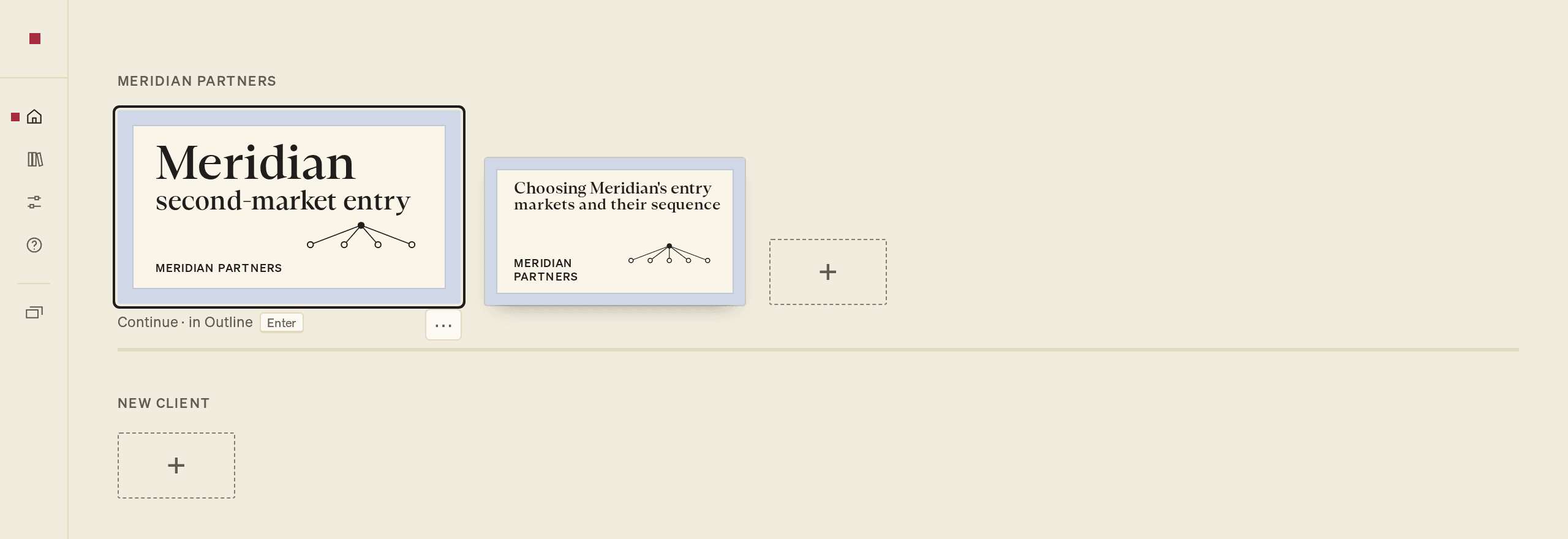
Home shows every deck as a cover on its client's shelf. The deck you were last in comes first, marked Continue, and opens where you left off. Your own firm's shelf, marked · your firm, holds your internal decks.
A deck is called Untitled deck until its Question is written. To rename a deck or client, select Rename in its ⋯ menu, or move to it and press F2.
Each cover says which step the deck is in, or Exported with the date. The + at the end of a shelf starts a deck for that client. The + under New client starts one for someone new.
The Library: your material, by client
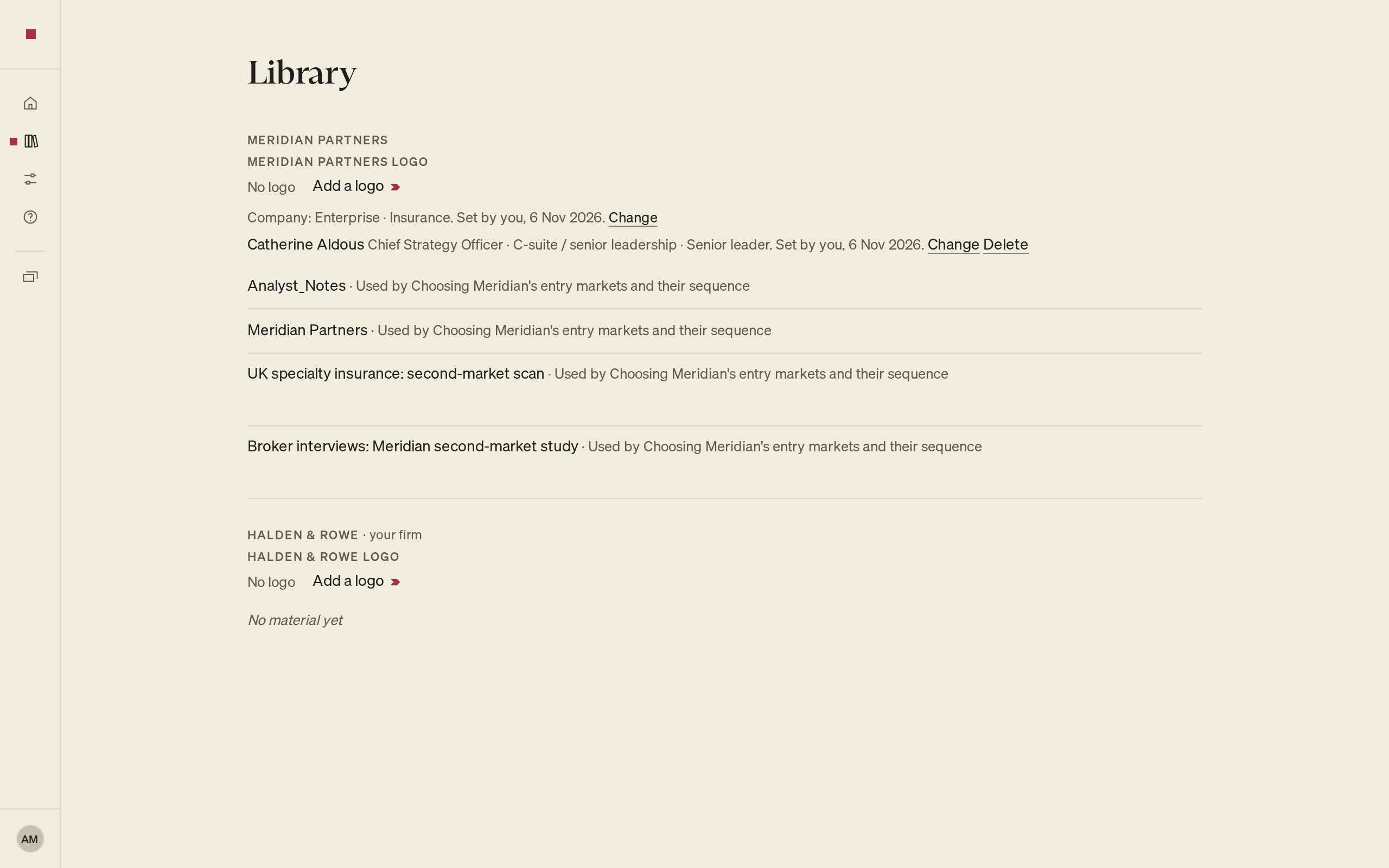
The Library lists every file and note you have added, by client. Used by names the decks that use each file. See Upload files and notes.
The Library also holds each client's logo, under the client's name: select Add a logo or Change logo. If PointProven has looked up the person a client's decks are tailored for, a short profile shows there too, with Change and Delete. See Delete and restore.
For your firm's logo, use Settings. For slide appearance, see Design your slides and After you export. Adding a logo does not import a custom PowerPoint template or brand styles.
The menu
After you answer the two welcome questions, the menu appears down the left of every page. It stays narrow, as a column of icons, until you open it. To open or close it, select the red square at its top, or press Tab to reach the square and then Enter. PointProven remembers your choice in this browser.
The menu holds, from the top:
- PointProven, which takes you to Home.
- Home, Library, Settings and Help. On Help, you can write to us. See Contact support.
- Your deck, under its client's name: the deck you are in, or on Home, the Library and Settings, the deck you last worked on. Its five steps are listed beneath it.
- Your initials or photo at the foot, with your name. Select it to see your name and email, and Sign out.
When the menu is narrow, point to an icon to see its name. Inside a deck, a small red square on the deck's icon shows you are in it.
Commands and keyboard shortcuts
Press ⌘K (Ctrl+K) to open the command palette. Type to find any command, page or setting. Inside a deck, it also searches the client's material.
To move on from a step, select its Next control at the bottom centre of the page, for example Next: Outline, or press ⌘⏎ (Ctrl+Enter). Until the next step can open, the control says what that step needs.
To see every key, press ⌘/ (Ctrl+/) or read Keyboard shortcuts.
FAQs and common issues
Why can I not open a step?
A step that is not open yet needs work in an earlier step. Point to the grey step to see what it needs.
When the menu is open, each step of the deck shows how far you have got:
- A tick means the step is done: the step after it is open.
- The step you are in has a small red square.
- A step that is not open yet is grey. Point to it to see what it needs, such as Argue, needs your question.
Why does the menu cover the page?
In a window narrower than a laptop screen, the open menu covers the page. Press Esc, or select the page, to close it. On a phone, the menu is the red square in the top-left corner.
How do I open Consider in each step?
In Frame and Argue, press ⌘O (Ctrl+O) to open or close Consider, the prompts beside your work. Outline and Deliver also show Consider, but ⌘O has a different action in those steps. To open Consider there, select it or find it in the command palette. Each step's guide explains the action.