How do I sign up and sign in?
How to access your account, reset your password, and sign out.
Updated 10 November 2026
Introduction
Use your password or an emailed link to sign in to PointProven. If you cannot access your account, see sign-in troubleshooting.
How to
Create an account
- If you have an invite, open it. It arrives by email, titled Your invite to the PointProven beta. Select Create my account: the sign-up page opens with your email address filled in. Otherwise, on www.pointproven.com, select Sign in, then Sign up. The page says Come in.
- Use your email address and a password with at least 12 characters and no more than 99.
An invite link works once, for 14 days, and only for the address it was sent to. If the sign-up page says Invite-only, for now., sign-up needs an invite at the moment: give your address under Email for the waitlist, and we email you when your invite is ready. If it says That invite link has been used or has expired, ask for a new invite, or join the waitlist.
PointProven tells you if the password also needs a special character, a number or a capital letter, or if it is too easy to guess.
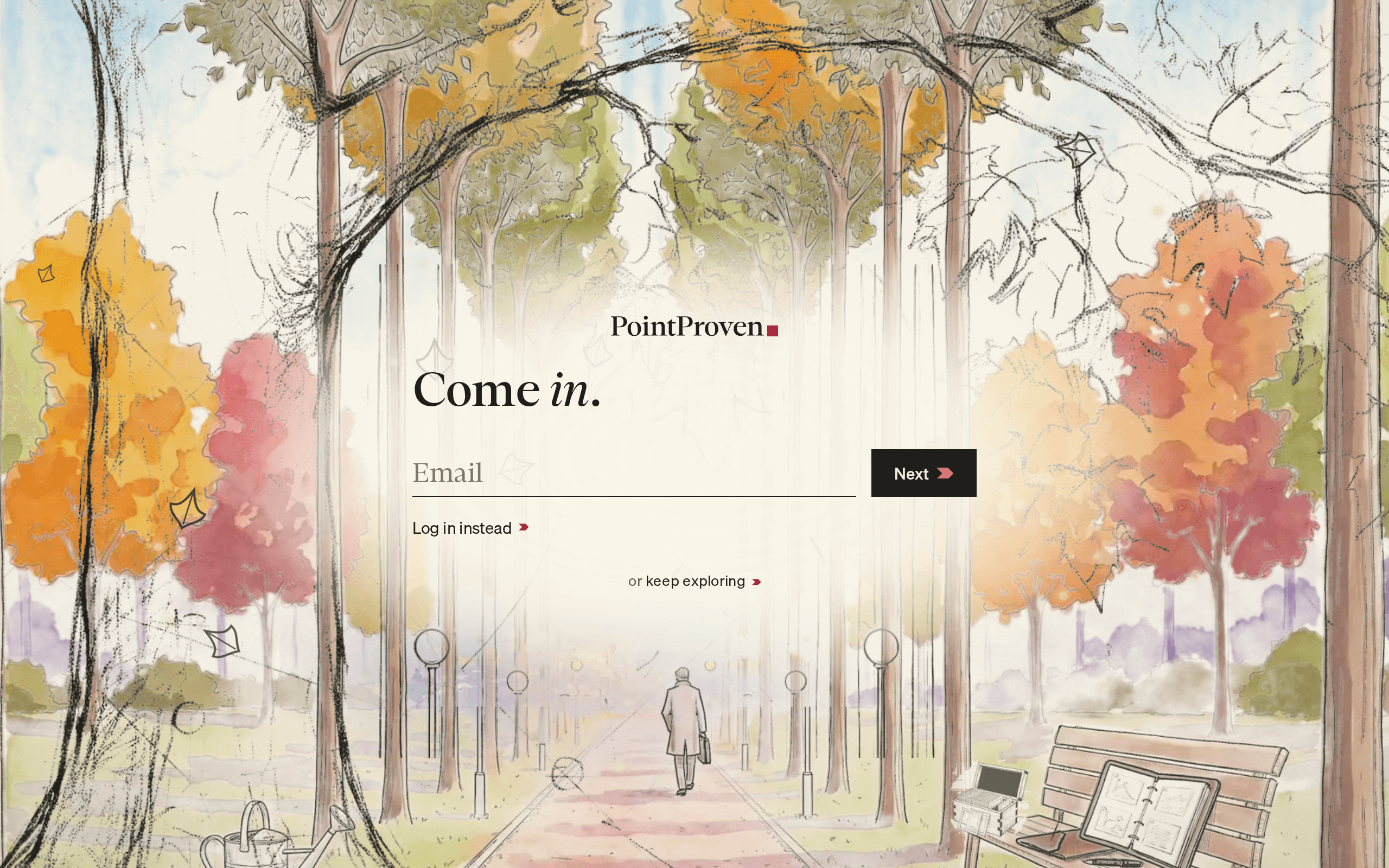
The page now says Check your email. To fix a mistyped address on the password question, select Change beside your email.
If you already have an account, select Sign in instead on the first question. To go back to the home page without signing up, select keep exploring at the foot of any sign-in or sign-up page.
The first time you visit, a short garden scene plays behind the greeting. Select skip to end it. It does not play if your device is set to reduce motion, or on later visits.
Verify your email
- Open the email PointProven sent you.
- Open the link in it, in the same browser. It brings you back to PointProven, signed in.
If the email has not arrived, check your junk folder. To get another, select Send it again on Check your email.
Answer the welcome questions
Give your name and your firm’s name before your first deck:
-
Under What’s your name?, give your name as colleagues know you.
-
Under What’s your firm called?, type your firm’s name as clients know it.
-
Optionally, under Your firm’s logo, choose one of the logos PointProven finds for that name. To upload a PNG or JPEG up to 1 MB, select Upload your own.
If PointProven finds no logo, it says No logo found for that name.
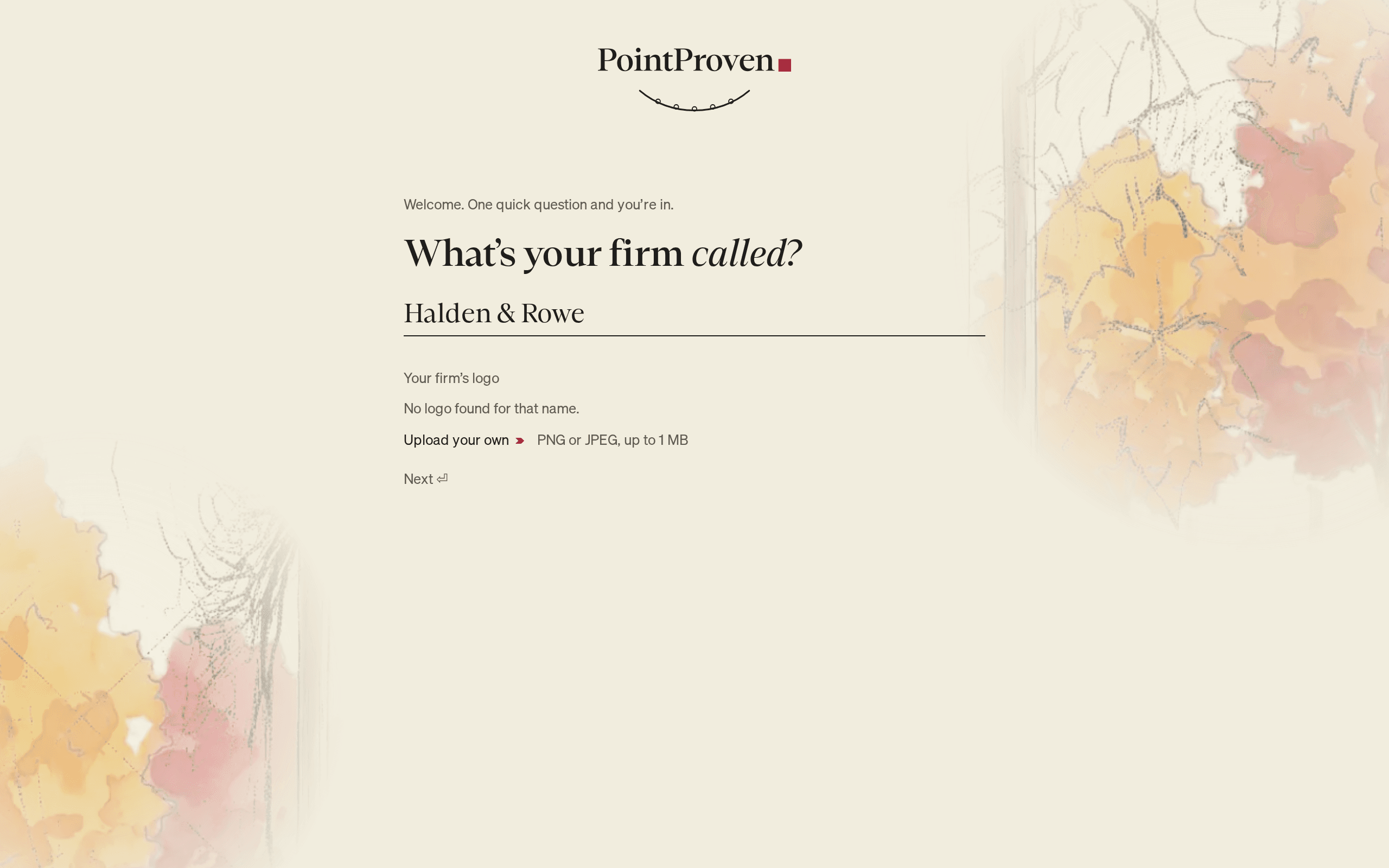
Your firm gets its own shelf on Home for your internal decks. PointProven then opens your first deck at Who is this deck for? To carry on from there, see Create your first presentation.
If you leave before naming your firm, PointProven asks again the next time you sign in.
Sign in with your password
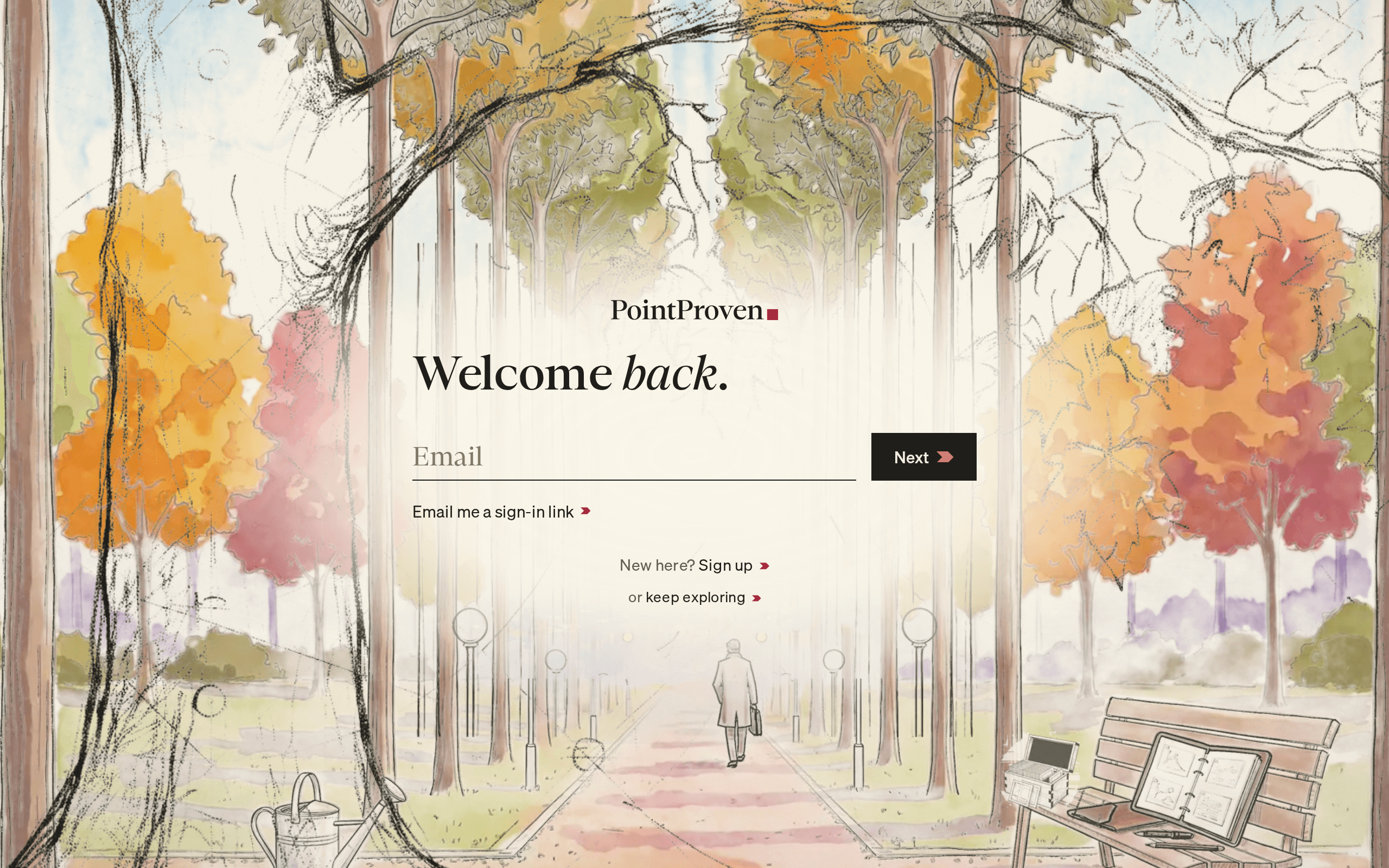
On the Sign in page, headed Welcome back., use Email and Password to sign in. PointProven opens Home. If you have no decks yet, it opens a new deck at Who is this deck for? If you came from a link to a page in the app, it opens that page instead.
New to PointProven? Select Sign up beside New here? at the foot of the page.
Sign in with an emailed link
Use an emailed link to sign in without your password.
- On the Sign in page, type your email address in Email.
- Select Email me a sign-in link. The page says Check your email.
- Open the link in the email, in the same browser. It brings you back to PointProven, signed in.
Enter your two-step code
If you have turned on two-step verification, PointProven asks for a code after your password or emailed link.
- Open your authenticator app.
- In Six-digit code, type the code the app shows now.
- Select Next.
To turn two-step verification on or off, see Change your settings. If you no longer have the device, email support@pointproven.com from the address you sign in with.
Reset a forgotten password
- On the Sign in page, type your email address, then select Next.
- Select Forgotten password. The page says A new password. with your email filled in.
- Select Next. The page says Check your email.
- Open the link in the email, in the same browser.
- In Choose a password, type a new password, then select Next. The same password rules apply.
PointProven saves the password and opens the app, signed in.
Sign out
- On a phone, select the red square in the top-left corner to open the menu.
- Select your initials or photo at the foot of the menu.
- Select Sign out.
PointProven signs you out and returns you to the Sign in page.
If a change has not saved yet, PointProven does not sign you out. A line starting Not signed out says what to do first. See "Not saved yet".
FAQs and common issues
Does joining the beta waitlist create an account?
Join the beta waitlist on the home page does not create an account. Type your email and select Join the waitlist. PointProven emails you a link: one click confirms your place on the waitlist. We email you again when your invite is ready. If the first email doesn't arrive within a few minutes, look in your spam folder, or select send it again.
What if the verification email does not arrive?
Check your junk folder, then select Send it again on Check your email. Open the verification link in the same browser.
What if my two-step verification device is lost?
Email support@pointproven.com from the address you sign in with.
Why can’t I sign out?
An unsaved change can prevent sign-out. A line starting Not signed out says what to do first. See “Not saved yet”.