How do I change my account and firm settings?
How to update account details, firm branding, spelling, and security, or delete your account.
Updated 10 November 2026
Introduction
Use Settings to change your account details, your firm's name and logo or your English spelling. You can also delete your account there. Most fields save as soon as you leave them.
How to
Open Settings
- On a phone, select the red square in the top-left corner to open the menu.
- Select Settings in the menu down the left of the page.
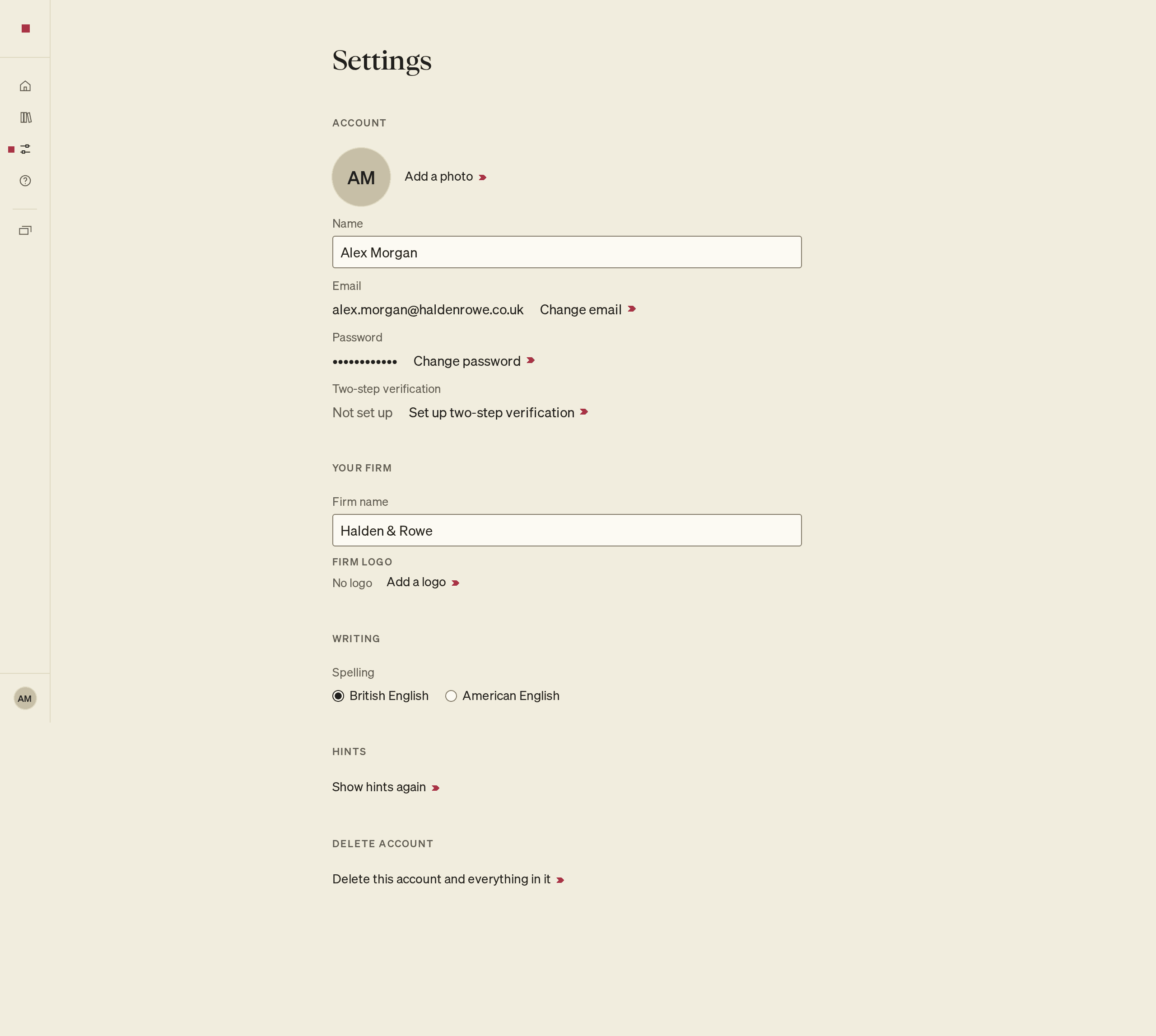
Change your name or photo
A name needs 2 to 100 characters.
- Under Account, enter your new name in Name.
- Press Enter, or move to another field.
The name saves, and a screen reader announces Name saved.
To add or change your photo, select Add a photo or Change photo and choose an image file. To remove it, select Remove photo. Your photo or initials show at the foot of the menu.
If you have no photo, PointProven may pick up the one linked to your email address on Gravatar.
Change your email
- Next to Email, select Change email.
- Type the address in New email.
- Select Send confirmation links.
- Open the link in each inbox: the one sent to your current address and the one sent to your new address.
Your email changes only after you confirm both links. Until then, sign in with your current address.
Change your password
- Next to Password, select Change password.
- Type a new password in New password. Use at least 12 characters and no more than 99.
- Type it again in Repeat it.
- Select Update password.
A screen reader announces Password updated.
Turn on two-step verification
With two-step verification on, signing in with a password or an emailed link also asks for a six-digit code from an authenticator app on your phone. You need an authenticator app installed first.
- Next to Two-step verification, select Set up two-step verification.
- In Name this device, type a name you will recognise, such as "My phone".
- Select Verify. A QR code appears.
- Scan the QR code with your authenticator app.
- Type the code the app shows in The six-digit code it shows.
- Select Verify. The device appears in the list, and a screen reader announces Two-step verification is on.
To add a second device, select Add another device and repeat steps 2 to 6.
Turn off two-step verification
Removing a device takes effect at once, with no confirmation. When you remove the last device, signing in no longer asks for an authenticator code.
- Next to Two-step verification, find the device in the list.
- Select Remove next to it.
When you remove the last device, a screen reader announces Removed, the device's name, and Two-step verification is off.
Rename your firm
Your own firm has its own shelf on Home, marked · your firm. You rename it here, not in the Library.
- Under Your firm, type the new name in Firm name.
- Press Enter, or move to another field.
The name saves, and a screen reader announces Firm name saved.
Add a firm logo
Uploads must be PNG or JPEG, up to 1 MB.
- Under Your firm, find Firm logo and select Add a logo, or Change logo if you already have one.
- Choose one of the logos PointProven finds, or select Upload your own and choose a file.
- Select Save logo.
A screen reader announces Logo saved. To clear the logo, select Remove logo. You can also add your firm's logo on the welcome page.
Client logos are in the Library, under the client's name. Adding a firm or client logo does not import a custom PowerPoint template or brand styles. For slide appearance, see Design your slides and After you export.
Choose British or American spelling
Under Writing, in Spelling, select British English or American English. The spelling check in your decks follows your choice.
When you sign up, PointProven sets your spelling from your browser's language: American English if your browser's first language is American English, British English otherwise. It keeps that setting on every computer you use, until you change it here. An account made before 2 November 2026 follows each browser's language until you choose.
Show hints again
Some keys have a small hint beside them. A hint fades once you have used its key three times. To bring the hints back, under Hints, select Show hints again. A screen reader announces Hints will show again.
Delete your account
Deleting your account removes its decks, clients and files without a grace period or a Deleted shelf. You cannot restore them. To delete a single deck, client or file instead, see Delete and restore.
-
Under Delete account, select Delete this account and everything in it.
PointProven emails a six-digit code to the address you sign in with.
-
Find that email.
-
Type the code in Code.
-
Select Delete account.
PointProven signs you out and returns you to the sign-in page.
FAQs and common issues
Why does changing my password ask me to sign in again?
If the page says Sign in again, then change your password, sign out, sign back in, and repeat the password-change steps.
What if I lose my authenticator device and cannot sign in?
Email support@pointproven.com from the address you sign in with.
What if the account-deletion code does not work?
Check the code, or select Cancel and start again to get a new one.